If your aim feels fine in creative, but seems to become problematic once you enter a real lobby, then it may be a problem with your game settings. With Chapter 7 Season 1 wrapping up in March 2026, this is the perfect time to finetune your settings in preparation for the new Season. And who better to use as references than Fortnite pro players?
We’ll go over everything you’ll need for gaming at the highest level of competition, including sensitivity settings, video options, and keybinds.
Why Pro Player Settings Matter
Pro players have spent thousands of hours playing the game, so the settings they use are battle-tested and proven beneficial for high-level play. To get the most out of this information, the best thing to do is not to copy their settings directly, but to draw conclusions about why pros land in similar settings across various sections.
Almost all of them set in-game sensitivity between 5% and 10%, and almost all of them run 800 DPI for mouse and keyboard. Most also keep shadows off, and these settings are not coincidental but rather a result of optimizations born of all those hours of competitive play.
Mouse Sensitivity Settings in Fortnite
DPI (Dots Per Inch)
This controls how far the cursor moves per inch of mouse movement, and 800 DPI is the dominant setting for competitive play, though some use 400 or 1600 DPI.
In-Game Sensitivity (X and Y-Axis)
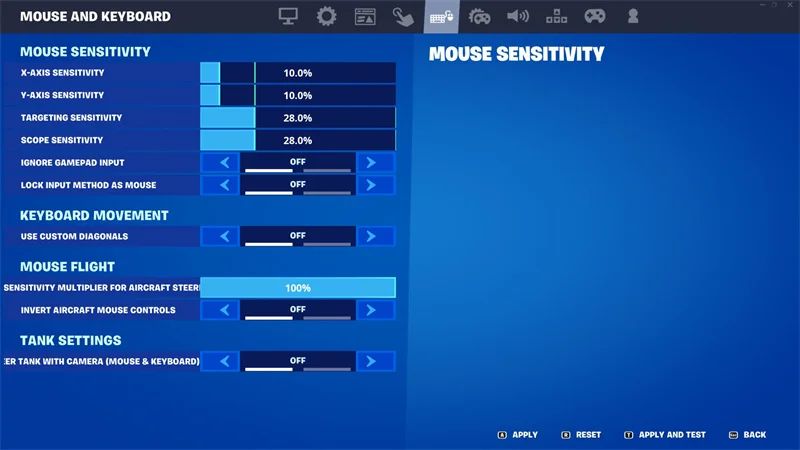
Fortnite’s sensitivity settings are split into X- and Y-axes, and most pros use something between 5% and 10%. Matching X and Y creates a consistent flick, which matters most when building, editing, and shooting all within a 2-second timeframe.
eDPI (Effective DPI)
This number represents the sensitivity setting across different DPI settings by multiplying the DPI by the in-game sensitivity percentage. The best eDPI for competitive Fortnite is somewhere between 32 and 80, and most pros fall between 40 and 60, for precise aiming and rapid 180-degree builds.
You might also like
Pro Player Settings Comparison
Here’s a data table of the settings of five prominent Fortnite players for further reference.
Player | DPI | X Sens | Y Sens | eDPI | Target Sens | Scope Sens |
Bugha | 800 | 6.4% | 6.4% | 51.2 | 45% | 45% |
Peterbot | 800 | 6.4% | 6.4% | 51.2 | 45% | 45% |
Mongraal | 800 | 6.7% | 6.7% | 53.6 | 50% | 50% |
MrSavage | 800 | 9.1% | 9.1% | 72.8 | 49% | 49% |
Clix | 800 | 8.7% | 6.3% | 69.6 | 60% | 35% |
How to Find Your Best Fortnite Sensitivity Settings
The key is to find your own sweet spot using pro player settings as your guide.
The 180-Degree Test
Begin with 800 DPI and a 7% in-game sensitivity, resulting in an eDPI of 56. Test this in Creative, and see if you can comfortably do a 180-degree turn with a single mouse swipe. If you run out of pad space, set sensitivity to 0.5% higher. If it overshoots, decrease by the same increment. Rinse and repeat.
The Tracking Drill
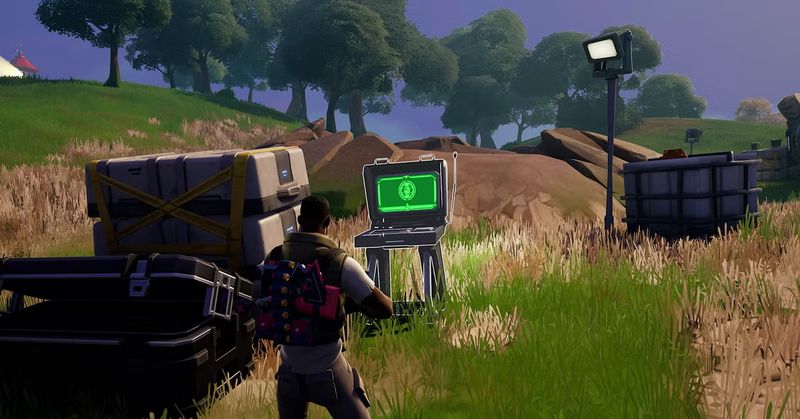
Use a 1v1 aim map to practice moving aim tracking with an AR. If your crosshair overshoots placement, then sensitivity is too high. If your lateral sight movement is too slow, your sensitivity is too low. Adjust in increments of 0.2% to 0.5% until you find the best feel for aiming.
The Edit Speed Check
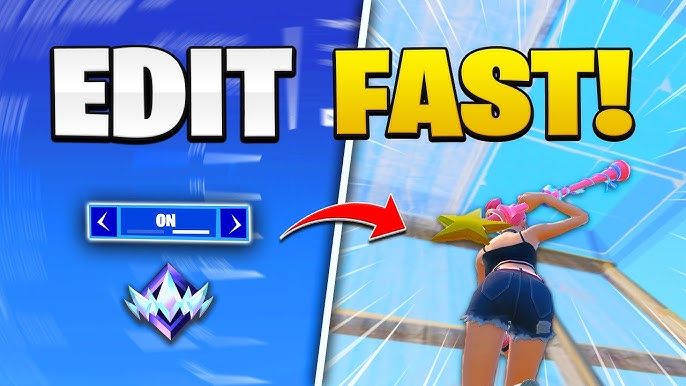
Building and editing are the game’s unique features, and your settings need to support this just as well as shooting. If shots feel fine but edits feel slow, slightly increase your edit mode sensitivity separately. But don’t be too quick to judge sensitivity, as it takes time to get used to the changes. Give yourself a week of in-game testing before adjusting further.
Scope and Targeting Sensitivity in Fortnite
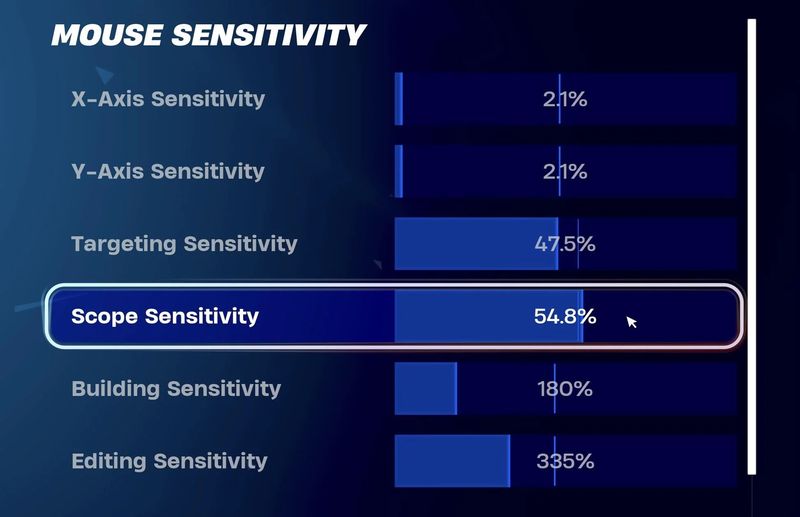
Your ADS sensitivity in Fortnite is split into two settings: targeting sensitivity (iron sights and red dot) and scope sensitivity (sniper scopes and magnified sights). Both are shown as a percentage of your base sensitivity setting.
Most pros set targeting sensitivity between 45% and 60% so that doing ADS with an AR or SMG results in roughly half of your hip-fire sensitivity. This results in a more precise tracking for actual aiming. For scoped sensitivity, set it somewhere between 35% and 50%.
Best Controller Sensitivity Settings for Fortnite
Look Sensitivity and Input Curve
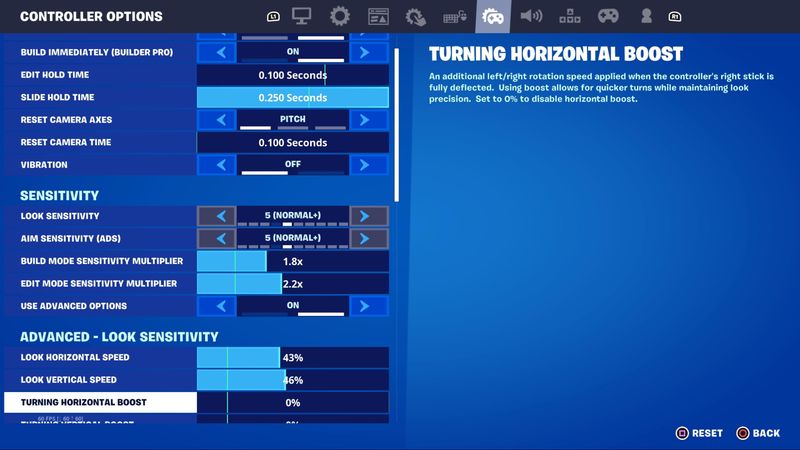
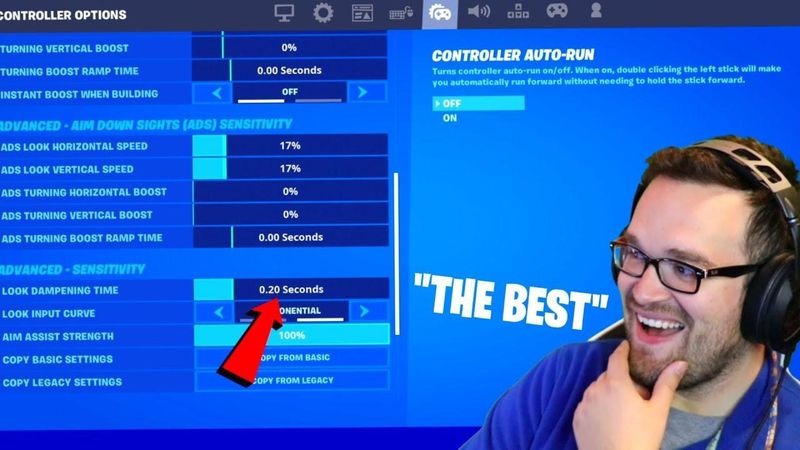
Set basic look sensitivity sliders at 5 to 7 for both horizontal and vertical. ADS drops to 3 to 5 for better tracking. As for the input curve, most pros run Linear, which gives you a direct 1:1 relationship between movement and camera speed. Exponential starts slow and speeds up as your stick goes further.
Linear works well for faster shotgun flicks, but Exponential may be better for managing long-range AR spray. Choose the one that feels better and lock in for building muscle memory.
Dead Zones and Build Sensitivity
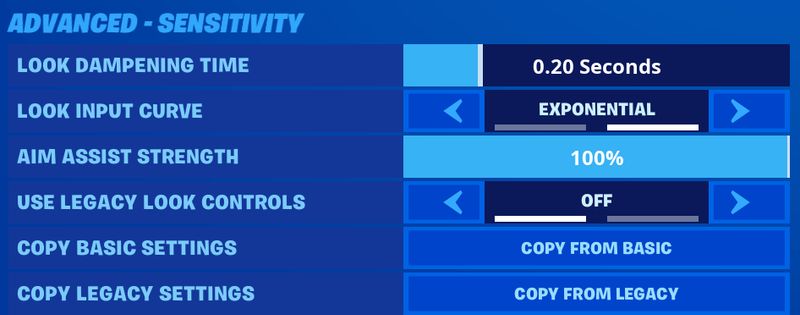
The dead zone determines how far you need to push your stick to register input, and most pros run 5% to 8% on both. The build and edit sensitivity multiplier is commonly set to 1.5x to 1.8x, which lets you keep a lower look sensitivity for more manageable aiming. But note that this split in sensitivity settings is the primary disadvantage of controllers in comparison to using a mouse.
Video and Performance Settings for Maximum FPS
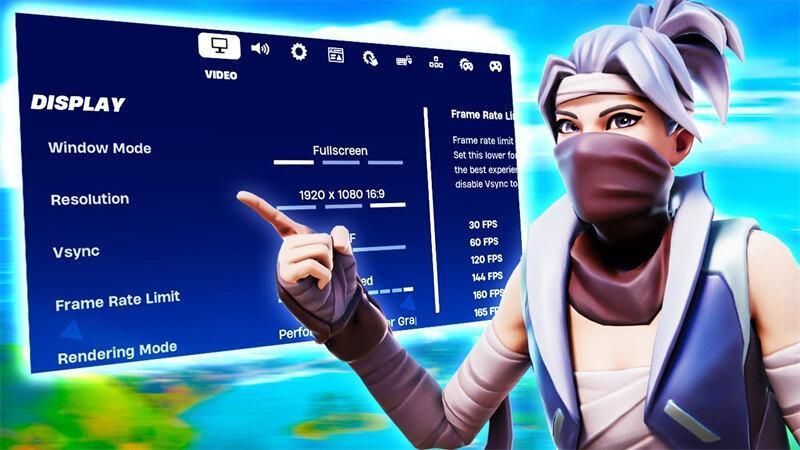
This is a less personalized section of the setting because you need to prioritize frames over everything else.
Rendering Mode
Performance mode, for the biggest FPS boost. This is delivered through stripping away visual fidelity. Every unnecessary visual detail is sacrificed for the best performance.
The Settings to Turn Off
Shadows, V-Sync, Anti-Aliasing, and Motion Blur should be turned off.
The Settings That Matter
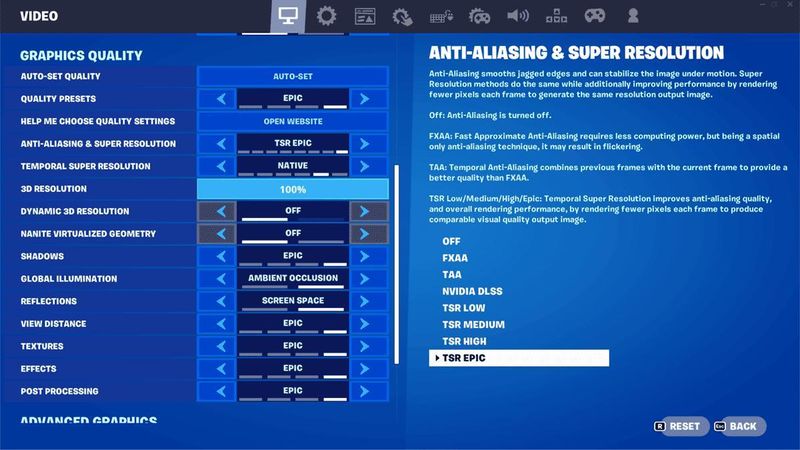
Resolution at 1920x1080, since the benefit of stretched resolutions was patched out of the game.
View Distance at Medium, for the best balance between FPS performance and enemy detection.
Textures, Effects, and Post Processing all at low for less visual noise and cleaner sightlines. You can bump textures up to Medium if your GPU can handle it, but everything else stays low.
Keyboard and Mouse Setup
Building Binds
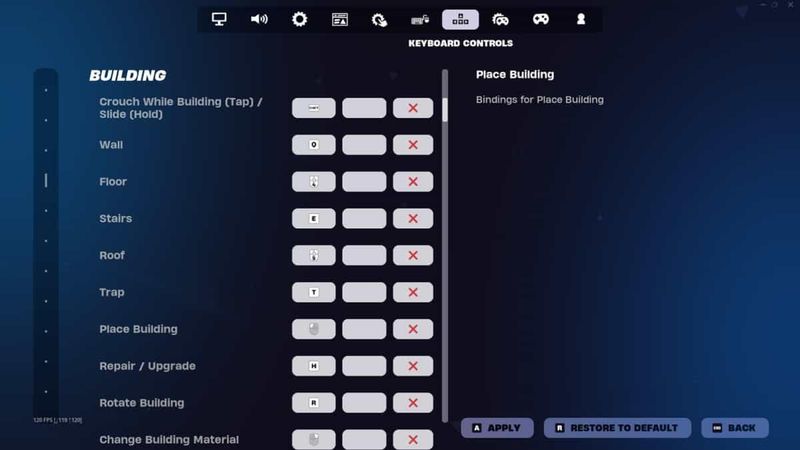
It’s best to map keys you use often to more accessible buttons, so set Wall and Stairs to your side mouse buttons, so you don't have to take your fingers off WASD. Floor and Roof should be set to keys adjacent to movement, with popular player Bugha using V for Floor and Left Shift for Roof. Keep each build key one keypress away, with no finger sharing duties between building and movement.
Edit Binds
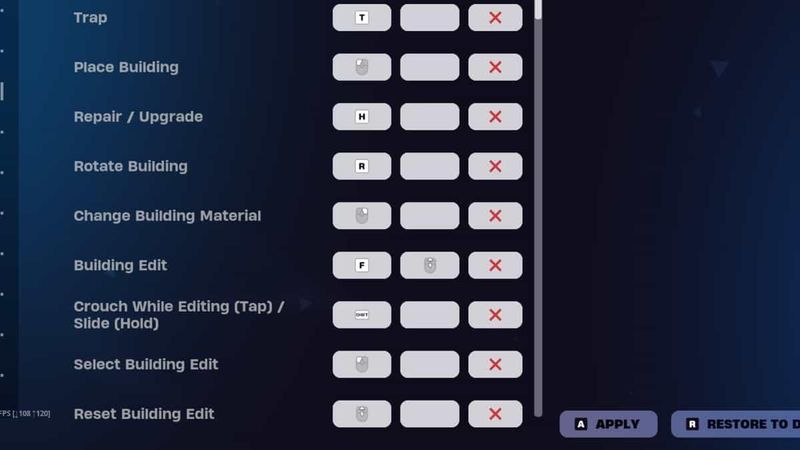
Fast edits are a must for best performance, and current meta dictates that F for Edit and Mouse Wheel Down for Reset Building Edit are the best choices. Mouse Wheel Down provides the fastest possible edit reset because it is detected as a series of rapid inputs, and Bugha uses this combination as well.
Weapon Slot Binds
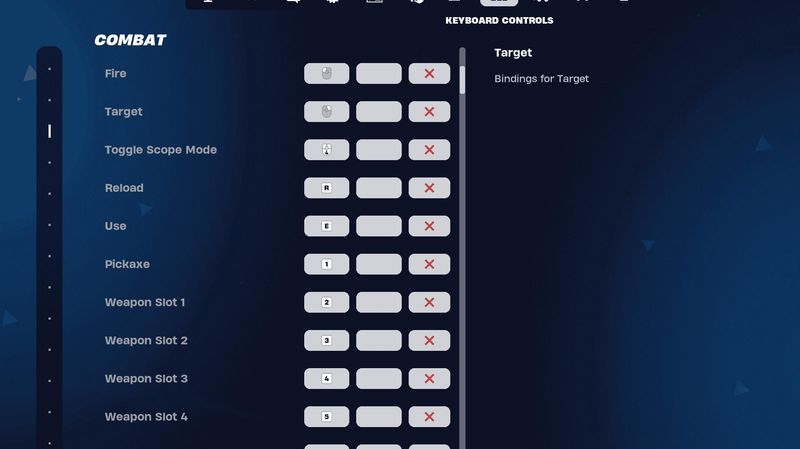
It’s best to bind weapon switching to 1 through 5 instead of the scroll wheel, and you can use side keys like Z, X, C, and V if the stretch to reach the number row is too much. Instant weapon access is best, especially when you never take your finger off the movement key.
Outro
The right settings for sensitivity and all these other configurations won’t turn you into a Fortnite Pro in an instant, but it does set you up for success. What’s more is that the wrong settings hold you back and keep you from performing better than you could have done in the first place.
Lock in your settings now to ensure that you’re prepared to take on the new season as soon as it starts. But if you’re looking to compete using a stacked Fortnite account with premium skins, progress, and battle pass rewards, igitems offers a whole range of Fortnite accounts to choose from, so you can skip the grind and focus on what matters in the game.