The Best Valorant Crosshair Settings for 2026
Valorant crosshairs are the single most personal setting in Valorant, but their impact on Valorant gameplay can often be overlooked. Considering how your unique crosshair is what helps decide whether you land a headshot or whiff at a wall, it's important to give it the attention it's due and not leave it at the default green that can lead to your aim being off.
Here, we'll explore how Valorant players can build the best crosshairs to improve their playstyle, including crosshair codes for different settings that run in-game in the current Patch.
How to Customize Your Crosshair in Valorant
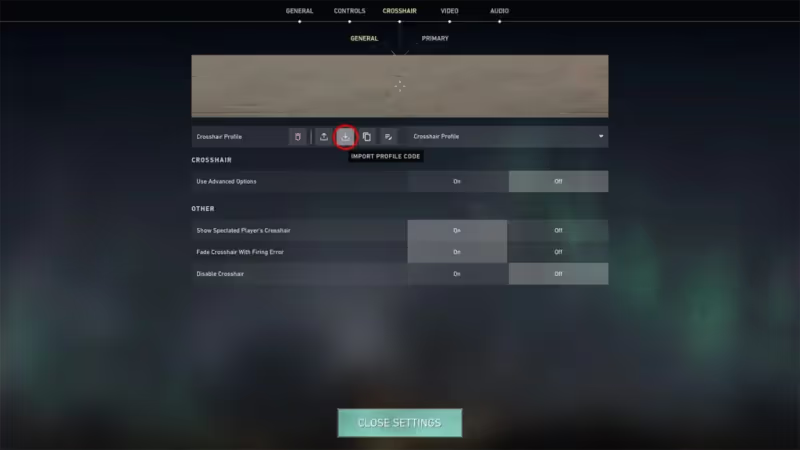
Go to the settings menu by clicking on the gear icon at the top right corner of the screen. Find the Crosshair tab, where you'll find sliders for various settings such as color and outline. You can save up to 15 profiles.
Here are the most important settings:
●Color: Cyan and white are the most widely used by pros. Cyan provides the strongest contrast against red enemy outlines and the game's map backgrounds.
●Center Dot: This option adds a single dot at the center of your screen. It's excellent for precision but can also obscure targets at range.
●Inner Lines: These are four lines that extend from the center. You can adjust the length, thickness, offset, and opacity.
●Outer Lines: A second set of lines, but most professional players turn this off.
●Firing Error / Movement Error: Good for learning spray control, but it's better kept off during competitive matches for less visual noise.
Static vs. Dynamic Crosshairs
Static is hands down the better option for consistent performance, because it stays the same regardless of what happens on-screen. Dynamic crosshairs expand when moving or shooting to provide feedback, but this additional detail is also visual noise with no real functional worth for people who are already used to the game's systems.
Dynamic can be useful for learning to play the game, but that's about all it's good for.
You might also like
Best Valorant Crosshair Settings Used by Pro Players
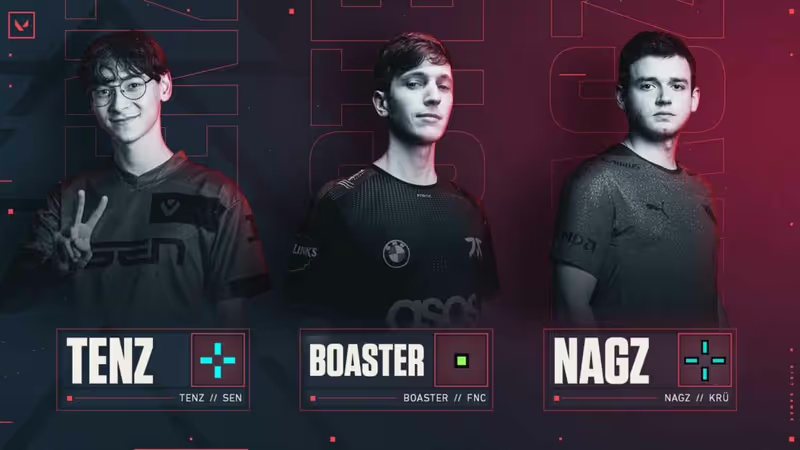
There's no single perfect crosshair that works for everyone, but we can see a pattern by observing what pros use. Most pros use one of two crosshair settings: a small cross or a dot. Below are some best crosshair codes you can copy via code to use for reference.
Player | Style | Color | Crosshair Code |
TenZ | Cross + dot | Cyan | 0;s;1;P;c;5;h;0;m;1;0l;4;0o;2;0a;1;0f;0;1b;0;S;c;5;o;1 |
Aspas | Small cross | White | 0;P;h;0;0l;4;0o;0;0a;1;0f;0;1b;0 |
Demon1 | Dot | White | 0;s;1;P;o;1;d;1;m;1;0b;0;1b;0 |
yay | Dot | White | 0;s;1;P;o;1;d;1;z;1;0b;0;1b;0;S;o;1 |
ScreaM | Dot + lines | Cyan | 0;s;1;P;c;5;o;1;d;1;z;3;f;0;0t;6;0l;0;0a;1;0f;0;1b;0;S;c;6;s;0.949;o;1 |
nAts | Tiny cross | White | 0;P;c;1;o;1;0a;1;0l;2;0t;1;0o;2;0f;0;1b;0 |
TenZ uses a cyan cross without a center dot and is probably the most copied crosshair setting in the game. The applied short inner lines leave a center gap to help with more precise headshot placement.
Aspas uses a simple white cross with length-4 inner lines and a zero offset. This is a very clean and classic setting to use.
Demon1 and yay both use dot crosshairs with outlines to counter bright skies. This is a great setting for tap-and-burst players who don't spray much.
How to Import or Export Crosshair Codes
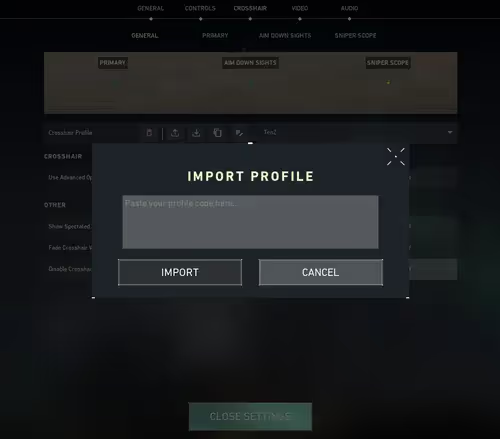
Importing crosshair codes in Valorant is very easy. Start by copying the crosshair code you'd like to apply, then navigate to the Crosshair tab in the Settings menu. Click the import button, which is the downward arrow next to your profile name, and paste in the code in the field that pops up.
There's also a way to export your crosshair settings to share with the community. If you want to browse more crosshair settings. Head over to The Valorant Tracker crosshair gallery, where you can filter crosshair settings by player, and preview each one before you import anything.
Best Crosshair Settings for Beginners
Here's a good setting to start with. You'll then be able to try small adjustments to better fit your preferences.
●Color: Cyan
●Center Dot: Off
●Inner Lines: Length 4, Thickness 2, Offset 2, Opacity 1
●Outer Lines: Off
●Outlines: On (Opacity 0.5, Thickness 1)
●Firing Error: On (Turn off when you're used to spray control)
●Movement Error: Off
This setting is clean, with a visible crosshair similar to what most pros and streamers use, but firing error is still enabled to allow new players to learn. You can disable firing errors and shrink the lines once you've built up experience and improved your accuracy and muscle memory.
Finding the Best Crosshair: Personal Preference Wins
Pros use the best crosshair settings, but remember that the perfect setting is the one that works for you after you discover what suits your aim style. Even TenZ's Valorant crosshair codes with thousands of hours of testing are not good if they clash with your playstyle, so use those pro settings as a reference to find the right crosshair fit for you.
Use the crosshair setting slots that the game allows, experiment with three or four settings at the range, and pick the one that feels best. You'll also need to give yourself time to get used to the crosshair, though, and it's not a good idea to swap crosshairs every time you don't perform well.
If your game still feels off after tweaking your crosshair settings, consider Valorant coaching sessions to help you update and address problems in your game. You can also grab a Valorant Account you can use for practicing in competitive matches without endangering your main account. Just head to igitems for accounts on offer.