








On this page
One Steam account holds your whole library, including Counter-Strike 2 and Dota 2, so securing it protects all of them. When you finish, the email, phone number, authenticator and signed-in devices on the account should all be yours.
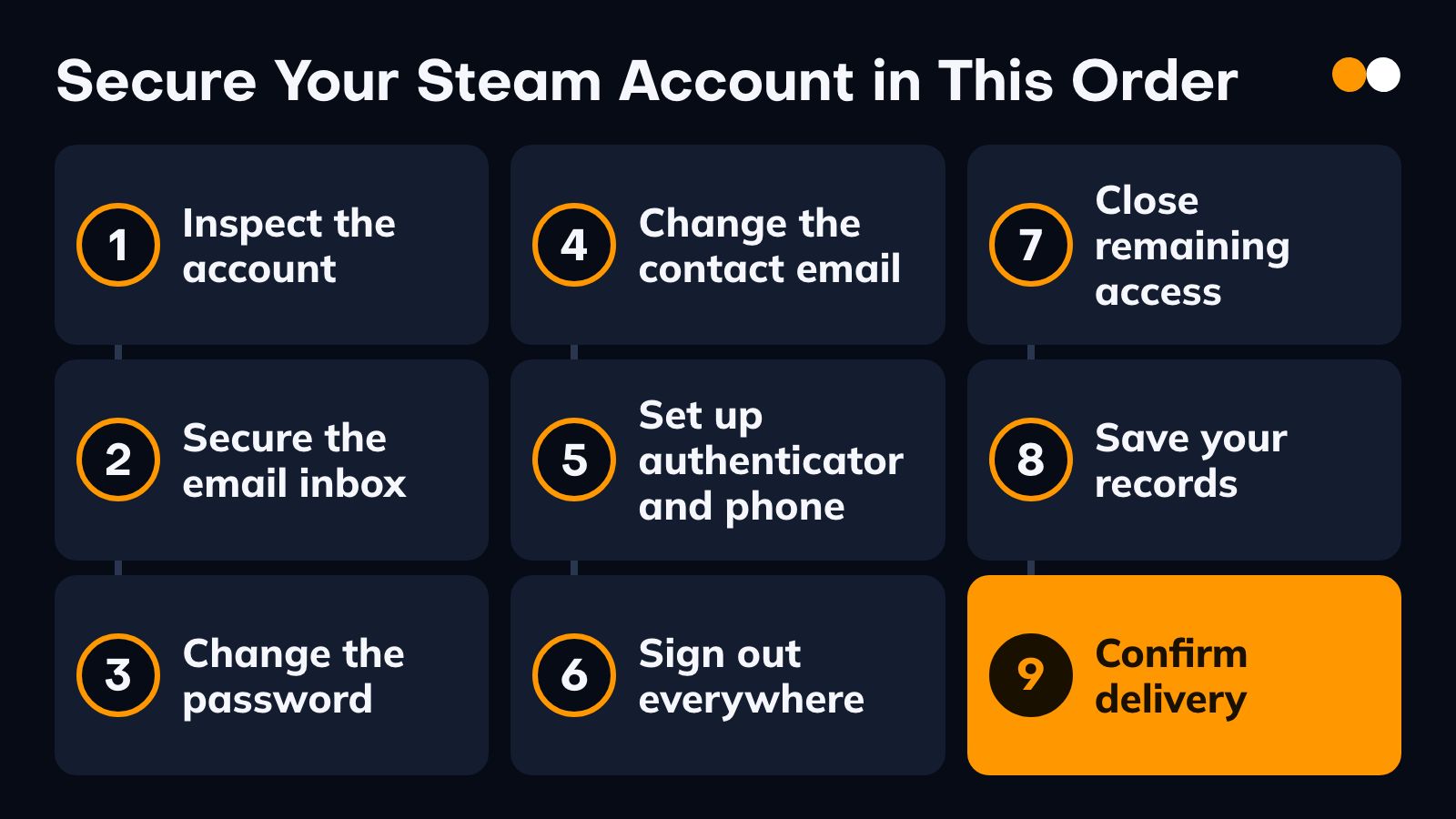
If you bought a Steam account, a CS2 account or a Dota 2 account on igitems, finish all the steps below before you press Confirm delivery. Follow them in order. Each step relies on the one before it, and a few common mistakes can lock trading for weeks. Steps 3 and 4 use the Steam desktop client, so have a computer ready.
How Steam Account Security Works
You sign in with an account name and password. Steam Guard adds a second check: a code sent by email or provided by the Steam Mobile App. Steam says the Mobile Authenticator gives the best level of account security.
Steam Guard codes can go to the contact email, so whoever controls that inbox has a way in. That’s why the email comes first.
Security changes also trigger automatic trading and Market limits. Neither the seller nor Steam Support can lift them, so step order matters.
Five Mistakes to Avoid
Don’t remove the seller’s authenticator. Move it. Removing it locks trading and the Market for 15 days. Moving it locks them for 2 days.
Never use the password reset flow. A reset locks trading and the Market for 5 or 30 days (see Step 3). Changing the password in Steam Settings has no lock.
Don’t sign out everywhere too early. Wait until the email and authenticator are yours. Otherwise the next sign-in code goes to the seller and you’re locked out.
Check for bans before adding a phone number. A VAC or game ban can spread to other accounts on the same number.
Don’t turn Steam Guard off and on. Disabling it stops trading and the Market, and after you turn it back on, both can stay locked for 15 days.
Step 1: Inspect the Account (Change Nothing Yet)
Don’t change any setting in this step. If something is wrong, you want to know before you add your phone number or trigger a trading lock.
Sign in with the details you received. If Steam asks for a code from an email or authenticator you don’t control, ask the seller for it in the order chat. Don’t use any reset or recovery option.
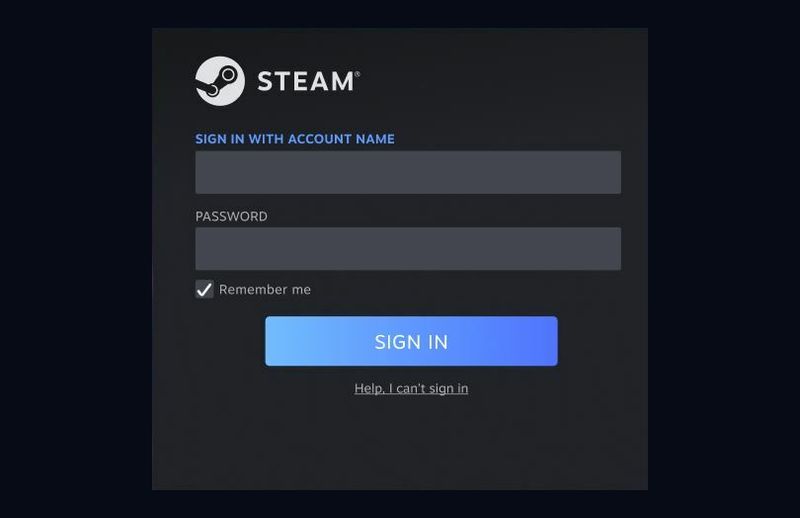
Sign in with the details you received. Don’t use the “Help, I can’t sign in” link.
Bans. Open the Steam profile and look for a ban notice. Then go to Steam > Settings > Account and select Click here for details under VAC Status to see which games a VAC ban affects.
Limited status. An account that has spent less than $5 USD on Steam is Limited. It can’t send friend invites and loses other community features.
Account Details. Click your profile name at the top right and open Account Details. Note the contact email, whether it shows Verified, and whether a phone number is listed under Contact Info.
Authenticator. If signing in needed an app confirmation or a code from the mobile app, the seller’s authenticator is on the account. You can also check Manage Steam Guard in Account Details.
Steam Family. Open Family Management in Account Details and check whether the account belongs to a family. Don’t leave it yet (see Step 7).
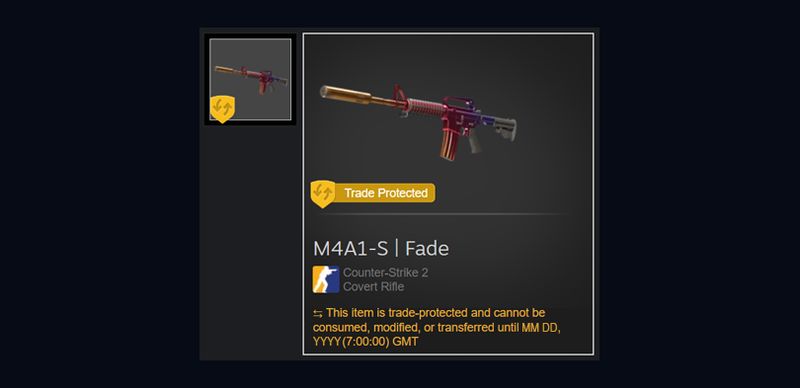
CS2 items. Look for the yellow Trade Protected shield in your Steam Inventory and read the Trade History.
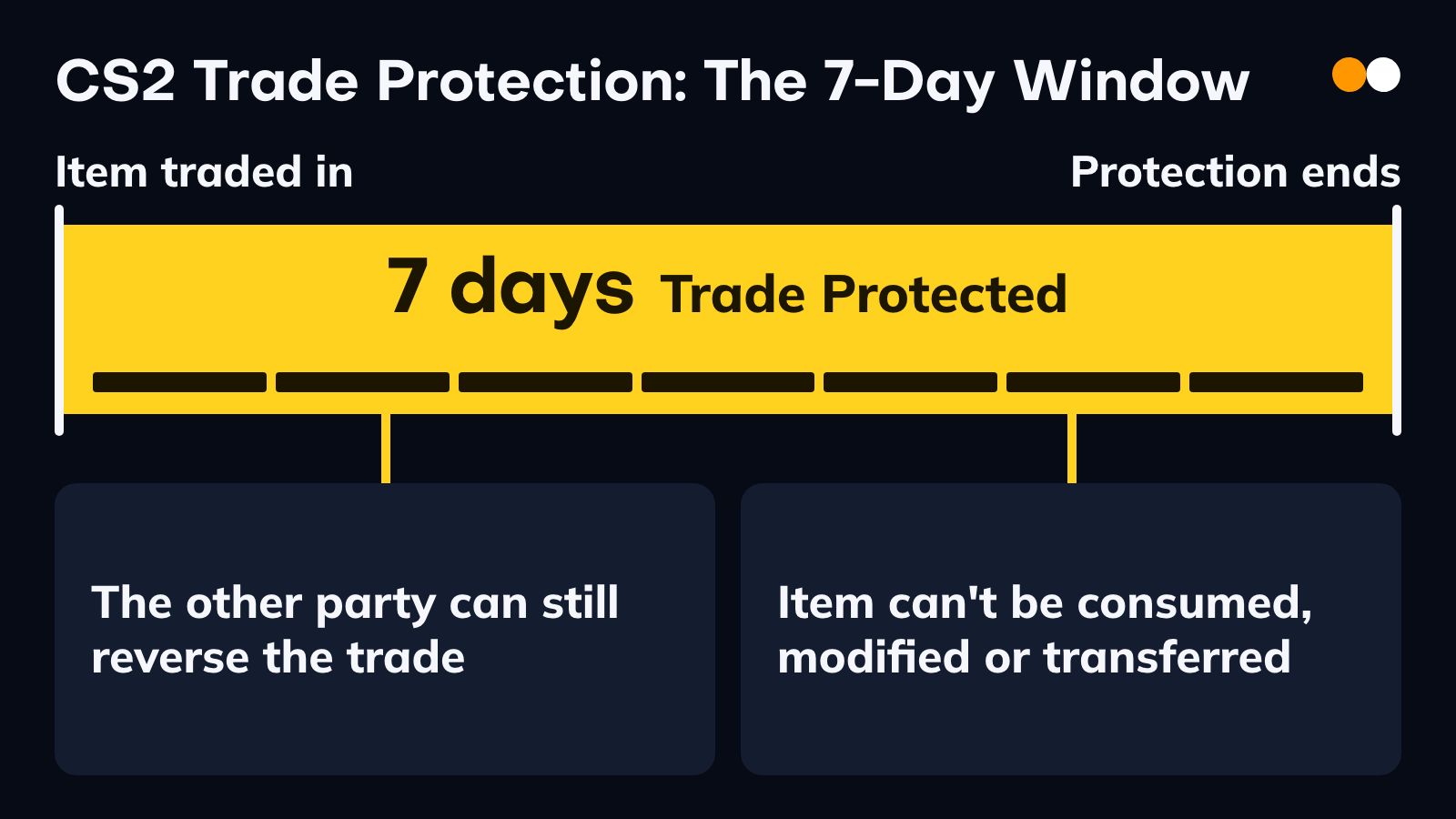
Why the yellow shield matters: CS2 items received in a trade stay Trade Protected for 7 days. During that time, the other party can still reverse the trade and take the items back, even after you’ve secured the account. Protected items also can’t be consumed, modified or transferred during that time, including to a Storage Unit. If skins you paid for carry the shield, ask the seller in the order chat before you confirm delivery.
Found a ban or anything the listing didn’t mention? Stop here and don’t add your phone number. Tell the seller in the order chat and follow What to Do If Something Looks Wrong below.
Step 2: Secure the Email Inbox
If the account came with its email login, secure that mailbox now, because Steam sends codes there. If it didn’t, go to Step 3.
Add your new recovery details before you remove the old ones. Old details can keep working for a while. Google may send codes to previous recovery info for 7 days, and Microsoft keeps a removed sign-in method usable for 30 days.
Sign in to the mailbox and change its password. Steam recommends using different passwords for your email and Steam.
Add your own recovery email and phone number, then remove the old ones.
Turn on two-step verification with the email provider.
Review the active sessions and remove any device you don’t recognize.
Step 3: Change the Steam Password
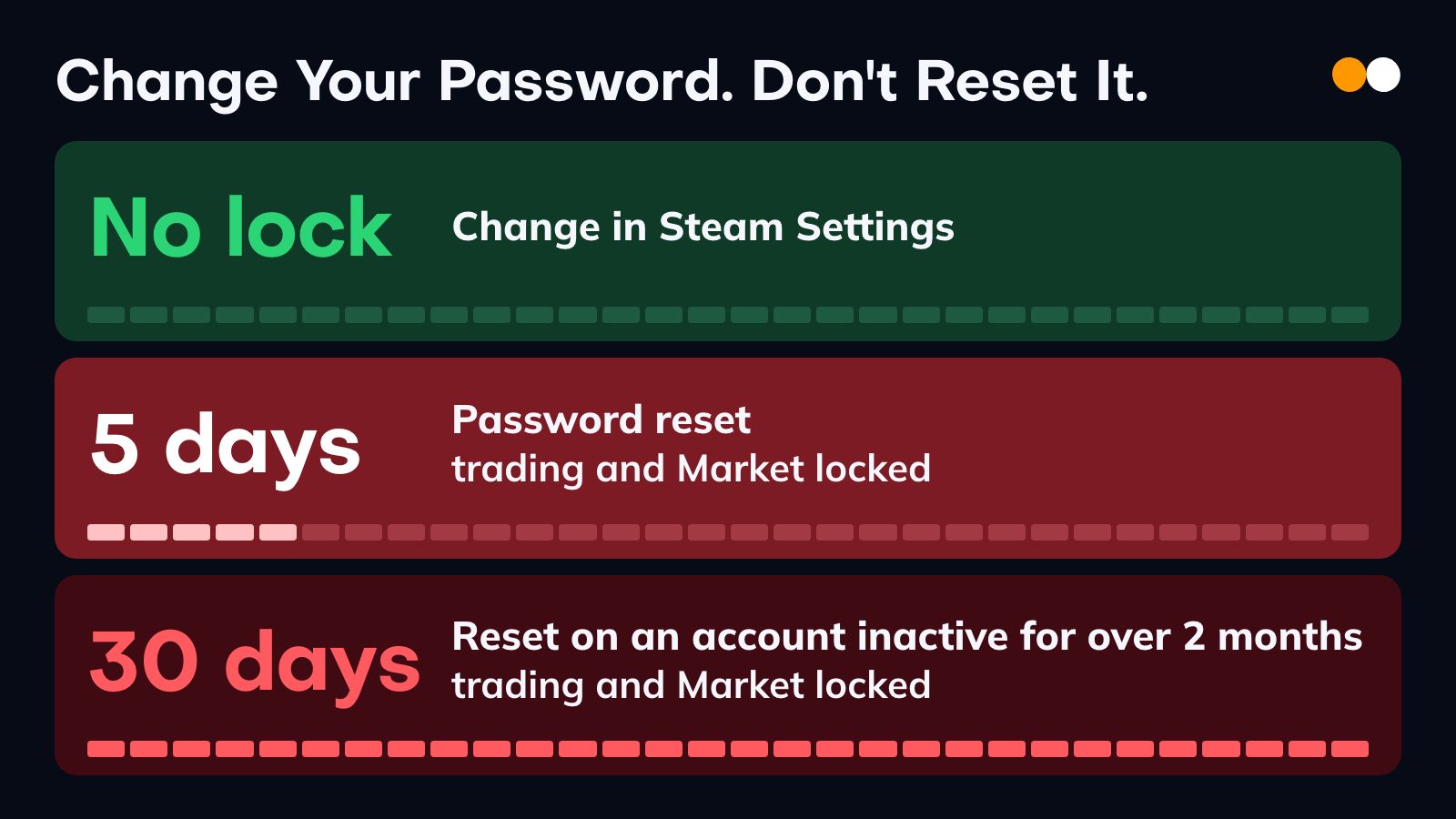
Use Steam Settings only. Never use “forgot password” or the Steam Help site to reset it. A reset locks trading and the Market for 5 days, or 30 days if the account had no activity for more than two months. That’s a real risk on older accounts. The change below has no lock.
Open the Steam client and go to Steam > Settings (Preferences on Mac).
Open the Security tab and select Change Password.
Choose the option to send a verification email.
Enter the 5-character code from the email and set a new password. It can’t be a previous password and must meet Steam’s strength rules.
Wait for the confirmation email.
Code going to an email or authenticator you don’t control? Ask the seller in the order chat, and don’t confirm delivery until it’s resolved.
Step 4: Change the Contact Email to Your Own
Use your own email here, even if the account came with a mailbox. A previous owner may keep recovery access to that mailbox for a while.
Go to Steam > Settings > Account and select Change contact email.
Enter your Steam password and your new email, then click Next.
Steam emails a verification link to the new address. Keep the Steam window open while you open the link, then finish in the client.
Open Account Details and check that the new email shows Verified. Steam’s email guide has more detail.
Can’t find the option, or Steam asks for a code from the old email or an authenticator you can’t reach? Ask the seller in the order chat, and don’t confirm delivery until it’s resolved.
Step 5: Set Up Your Authenticator and Phone Number
Read this before you add a phone number:
Make sure Step 1 found no bans. Steam says that when an account receives a VAC or game ban, other accounts on the same phone number can be banned too, in games where the developer enables this.
Use a number you control, and not one attached to a Steam account you care about. Steam may also treat accounts that share a number as the same identity under its agreement, policies and restrictions.
Use a mobile or prepaid number. Steam doesn’t accept new VoIP numbers.
No suitable number? You can still add the authenticator by selecting I don’t have access to a phone number during setup. You’ll lose SMS recovery, and phone numbers are one of the factors in CS2 Trust Factor.
If the Seller’s Authenticator Is on the Account: Move It
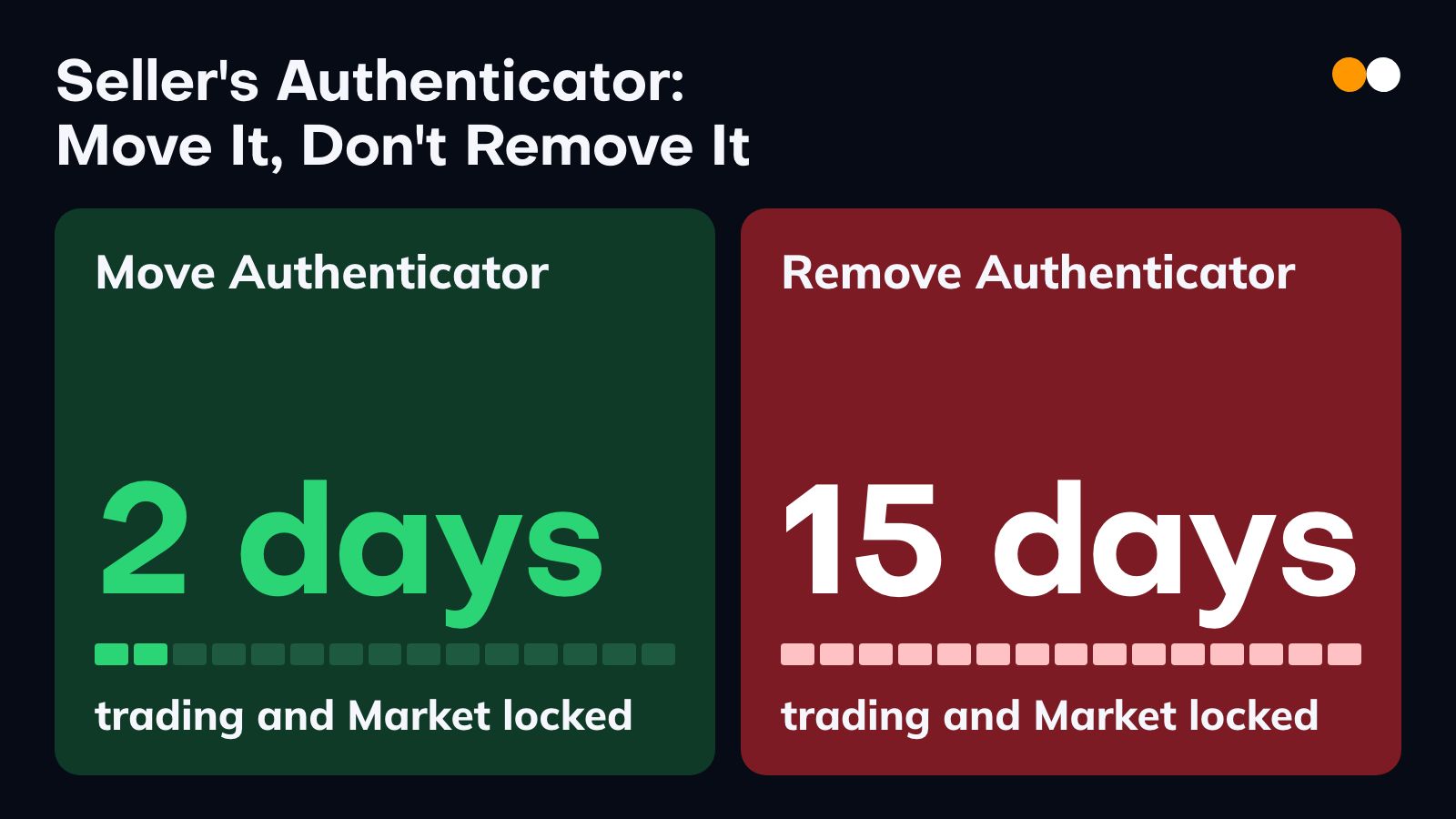
Don’t ask the seller to remove it. Removal locks trading and the Market for 15 days. A move locks them for 2 days, and Steam recommends moving whenever possible.
Install the Steam Mobile App on your phone (iOS 13 or later, Android 5.0 or later) and sign in.
On the Steam Guard tab, select Move Authenticator. Ask the seller in the order chat to confirm it with their authenticator.
If the seller can’t approve it, select I no longer have access to my authenticator when asked to confirm the sign-in. Steam sends an SMS code to the account’s phone number, so you’ll need the seller to give you that code. If neither route works, don’t confirm delivery.
Replace the phone number: click your profile name, then Account Details > Contact Info > Manage your phone number. Remove the seller’s number and add yours. If Steam sends a confirmation to the seller’s number, ask them for it in the order chat.
In the app, open Steam Guard, tap the gear icon, then Recovery Code. Write the code down and keep it offline.
Steam’s help pages don’t say whether a move cancels a recovery code or backup codes the seller saved earlier, so don’t treat the move as the end of the seller’s access.
You might also like
Browse all Steam Accounts











If No Authenticator Is on the Account: Add One
If the account lists a phone number that isn’t yours, remove it under Account Details > Contact Info > Manage your phone number. If Steam sends a confirmation to that number, ask the seller for it in the order chat.
Install the Steam Mobile App (iOS 13 or later, Android 5.0 or later) and sign in. You’ll land on the Steam Guard tab.
Select Add authenticator, enter your phone number and type in the code Steam texts you (setup guide).
Save the recovery code offline. Steam says it lets you recover your account yourself if you lose your phone or authenticator.
Step 6: Sign Out Everywhere
Do this only after the email and authenticator are yours. Every device will need a new Steam Guard code afterwards. If that code still goes to the seller, you’re locked out.
Open Account Details > Security & Devices, or go straight to Authorized Devices.
Review the devices listed.
Select Sign out everywhere.
Sign back in on your own device.
Your device now counts as new, so it can’t trade or use the Market for 7 days unless the authenticator has been on the account for at least 7 days.
Step 7: Close the Remaining Access Points
Steam Family. Don’t rush to leave a family. After leaving, an adult must wait 1 year from joining the previous family before creating or joining another, and each family slot has a one-year cooldown. You can always rejoin the last family you were in without waiting, if it has fewer than 6 members. An unknown family is still a risk, because your account may be VAC banned if a member cheats or commits fraud in a game from your library. Ask the seller in the order chat before you act. A child account can’t leave by itself and must be removed by an adult in the family or by Steam Support.
Stored payment methods. Never use a card or payment method left on the account, and remove it if you can.
Web API key. Open the Steam Web API key page. If there’s a key you didn’t create, revoke it. Community reports describe scammers using keys to interfere with trades.
Trade URL. Your link is at the bottom of the Who can send me Trade Offers? page. Create a new one if the option is offered. Keep checking every incoming offer, because Steam’s help pages don’t confirm that an old link stops working.
Third-party sites. Steam Guard doesn’t limit sign-ins on sites that use your Steam login. If the account is connected to a trading or skin site you don’t recognize, remove that access where the site allows it.
Steam Guard files. Never share one. Steam will never ask for it, and anyone who has the file plus your account name and password can get in without your email.
Step 8: Save Your Records
Keep these somewhere safe and offline:
Your igitems order details
Your Steam recovery code
The account name and the email now on the account
Step 9: Confirm Delivery or Report a Problem
Press Confirm delivery only when all of this is true:
You found no ban or other problem the listing didn’t mention.
You changed the Steam password.
The contact email is yours and shows Verified.
The authenticator is on your phone and your recovery code is saved.
The seller’s phone number is gone.
You signed out everywhere and signed back in.
You checked the remaining access points in Step 7.
You checked CS2 items for the yellow shield and read the Trade History.
If any of these isn’t true, don’t confirm. Go to What to Do If Something Looks Wrong.
Trading and Market Limits You May See
These limits are normal after a purchase. Steam usually shows the reason when you try to trade or use the Market. For full details, see Steam’s restrictions guide and trade holds guide.
Security Changes
Password changed in Settings: no lock.
Password reset: no trading or Market for 5 days, or 30 days if the account was inactive for more than two months.
New device: no trading or Market from that device for 7 days, waived once the authenticator has been on for 7 days. Clearing cookies, using a new browser, reinstalling Steam or reformatting counts as a new device.
Steam Guard off, or on for less than 15 days: no trading or Market.
Email Steam Guard recently enabled or toggled: no Market for 15 days.
Authenticator added, email Steam Guard already on: no new lock, but trades created in the first 7 days can be held for up to 15 days. Adding an authenticator doesn’t shorten existing holds.
Authenticator added, no Steam Guard before: no trading or Market for 15 days.
Authenticator moved: no trading or Market for 2 days.
Authenticator removed: no trading or Market for 15 days.
Trades
Trade holds: without an authenticator for the last 7 days, items leaving the account can be held for up to 15 days.
CS2 exception: CS2 items aren’t subject to trade holds. They trade immediately under Trade Protection, then stay protected for 7 days. The account locks above still stop CS2 trading while they last.
Cancelling an accepted trade on hold: no trading for 7 days, and Steam Support can’t remove this.
Reversing CS2 trades: every trade with Trade Protected items from the last 7 days is reversed, and the account that started it can’t trade or use the Market for 30 days. Its trade partners aren’t locked.
Community Market
Purchase requirement: the account needs a successful purchase older than 7 days but not older than a year. Wallet funds, games, DLC and software count. Retail CD keys and gifts don’t, and a chargeback resets the requirement. An account with no purchase in the past year needs a new one, then a 7-day wait.
New unverified payment method: 3-day wait before Market purchases.
Items bought in-game or on the Market: not tradable or marketable until the date shown on the item.
Account Status
Limited account: community features are restricted until the account has spent at least $5 USD on Steam.
VAC ban or CS2 game ban: permanent. A VAC ban also blocks CS2 item trades, the CS2 store and item drops.
Trade ban: temporary or permanent, depending on the violation.
Account Name, Steam Wallet and Bans
Account name: it can’t be changed, even by Steam Support. You can change your player name at any time in your profile settings.
Steam Wallet: funds can’t be moved or gifted to another account. Don’t keep more on the account than you plan to spend.
Bans: they stay on the account regardless of who was using it at the time. Steam Support can’t remove VAC bans, and items and games can’t be moved off a VAC-banned account.
Notes for CS2 Accounts
Prime: Prime Status stays on the account, and there’s currently no way to remove it.
Premier: requires Prime Status and Profile Level 10.
Trust Factor: it’s hidden, and there’s no way to check it. Steam says phone numbers and CS2 Rank are among the factors, along with your experience on Steam and in CS2.
Game bans: they’re permanent. Steam Support can’t remove them, and items can’t be moved off a game-banned account.
Skins: Steam Support doesn’t restore items that have left an account for any reason, so check Trade Protection in Step 1 before you confirm.
Notes for Dota 2 Accounts
The CS2 exception doesn’t apply. Dota 2 items can be held for up to 15 days when they leave an account without 7 days of authenticator protection.
Timed drops aren’t tradable or marketable.
Valve has required phone verification for ranked Dota 2 in the past. If the game asks for a number, follow the phone rules in Step 5.
Scam Checklist
Never approve a sign-in you didn’t start.
Never give anyone your password, Steam Guard codes, SMS codes or recovery code.
Check the items and the trade partner on every trade before you confirm it.
Ignore anyone claiming to be Steam Support on Discord or any other chat. Official support is only at help.steampowered.com.
Ignore anyone offering to remove restrictions or bans. Steam Support itself can’t change trading limits.
Don’t follow links from strangers promising free skins, items or rewards.
Only sign in on www.steampowered.com, store.steampowered.com, steamcommunity.com or help.steampowered.com, and check the address carefully.
Avoid unknown trading sites, unofficial apps, browser extensions and suspicious downloads.
Keep your computer and security software up to date.
Watch your email. Steam sends notices of security changes, including when backup codes are created or used.
Good to Know Before You Play
Steam’s rules don’t allow accounts to be sold or transferred, and that includes the account you bought. The Steam Subscriber Agreement says:
“You may therefore not sell or charge others for the right to use your Account, or otherwise transfer your Account”
“You may not reveal, share or otherwise allow others to use your password or Account except as otherwise specifically authorized by Valve.”
“In the event that your Account or a particular Subscription is restricted or terminated or cancelled by Valve for a violation of this Agreement or improper or illegal activity, no refund, including of any Subscription fees or of any unused funds in your Steam Wallet, will be granted.”
If Valve restricts or terminates the account for this, you can lose access to its games, items and Steam Wallet funds, with no refund from Valve.
The previous owner may still be able to recover the account. Steam Support can return an account to someone who provides the original payment details or retail product codes, even after the email, password and phone number have changed. Finishing every step here doesn’t remove that risk, and a buyer usually can’t pass the same check.
No security step can guarantee permanent access. Keep your igitems order record and your recovery code safe.
What to Do If Something Looks Wrong
If you see activity you don’t recognize, follow Steam’s security advice:
Check Authorized Devices. If the email and authenticator are already yours, use Sign out everywhere. If they aren’t, ask the seller in the order chat first, because the next sign-in code would go to the seller.
Change your password in Steam > Settings > Security.
Review the security of your email, and check that the contact email and phone number are still yours.
Bought on igitems and stuck, locked out or seeing a problem?
Tell the seller in the order chat first. Don’t contact Steam Support about a purchased account without speaking to the seller. Support can’t change trading limits, and recovery asks for proof of ownership a buyer normally doesn’t have.
Don’t start a reset through Steam’s login help on your own, because a reset brings the 5-day or 30-day lock.
If it isn’t resolved, don’t confirm delivery. Use Report a problem on the order page (how disputes work) and our team will help.
Our 24/7 Help Center is also there if you need it.
Frequently Asked Questions
Is Steam Guard necessary?
Yes. Without Steam Guard enabled for 15 days, you can’t trade or use the Community Market. Keep it on and don’t toggle it.
Do I need the Steam Mobile Authenticator?
Email Steam Guard works, but the authenticator is Steam’s strongest option. Once it has been on for 7 days, items are no longer held and new devices aren’t restricted.
Can I use my own email on a purchased account?
Yes, and you should. Use Change contact email in Step 4. You’ll need the account password and access to the new inbox.
Can I move Steam Guard to my phone?
Yes. Use Move Authenticator in the Steam Mobile App. You’ll need approval from the current authenticator or an SMS code sent to the account’s phone number, so the seller has to help. The move adds a 2-day trading and Market lock.
What happens if the authenticator is removed?
You can’t trade or use the Market for 15 days, and security drops back to email codes. Move it instead whenever you can.
Why can’t I trade right after buying?
Usually because of a new device, a recent Steam Guard change or a moved authenticator. On older accounts, it can also be the Market purchase requirement. Check the limits list above.
Why are my CS2 or Dota 2 items on hold?
CS2 items don’t get trade holds. If you can’t trade them, look for an account lock or the 7-day Trade Protection shield. Dota 2 items can be held for up to 15 days until the authenticator has been on for 7 days.
Can the seller or a previous owner take the account back?
It’s possible. These steps close the normal ways in, but Steam Support can return an account to someone with the original payment details or retail product codes. Keep your order record.
Is Dota 2 secured separately?
No. Dota 2 has no separate login, so securing the Steam account secures Dota 2 and CS2.
What should I do if someone gets into my account?
Change your password in Settings and check your email and phone number. If the email and authenticator are yours, sign out everywhere too. If you bought the account on igitems, tell the seller in the order chat, then use Report a problem if it isn’t resolved.
When should I confirm delivery?
Only after you finish the steps and everything on the Step 9 checklist is true. If something isn’t right, don’t confirm. Use Report a problem on the order page.