On this page
Blox Fruits, Adopt Me, Grow a Garden and every other Roblox experience have no login of their own. Their progress, items, pets and fruits sit on the Roblox account, so whoever controls that account controls them. When you finish, the email, password, 2-Step Verification, phone number and passkeys on the account should all be yours, and every other device should be signed out.
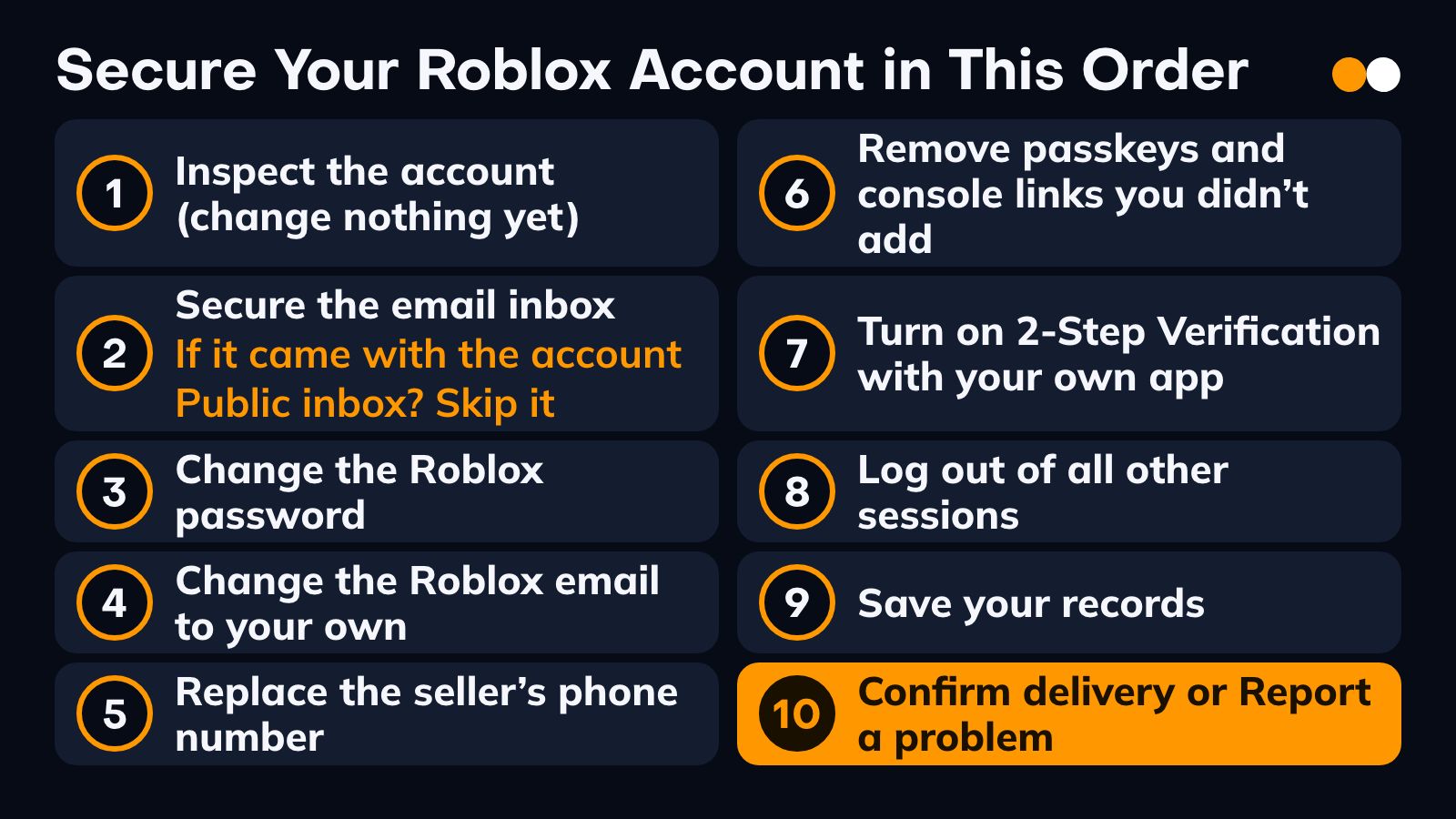
If you bought a Roblox account on igitems, including one sold for Blox Fruits or Adopt Me, finish all the steps below before you press Confirm delivery. Follow them in order, because each step relies on the one before it. The biggest trap is a login the seller leaves behind: a passkey signs in without any 2-Step Verification code, and a phone number on the account can reset the password.
How Roblox Account Security Works
2-Step Verification (2SV) adds a second check with an authenticator app, an email code or a security key. Only one method can be on at a time. Roblox recommends the authenticator app. 2SV needs a verified email on the account.
Some ways in skip the password or the code:
Passkeys. A passkey login always skips 2SV. An email one-time code skips it only when Email is the 2SV method.
Logged-in devices. Quick Login lets any device that’s already signed in give a new device full access without the password.
Five Mistakes to Avoid
Don’t leave the seller’s passkey or authenticator on the account. A passkey signs in with no 2SV code, and the seller’s authenticator generates every 2SV code on their phone.
Don’t leave the seller’s phone number on the account. It can reset the password through Account Recovery.
Don’t sign out everywhere before the email and 2-Step Verification are yours. Otherwise the next sign-in code goes to the seller and you’re locked out.
Don’t accept the seller’s recovery codes as a finished step. They can keep a copy. Only codes you generate yourself count.
Don’t confirm delivery just because the game opens. A working login doesn’t mean the seller has lost access.
Step 1: Inspect the Account (Change Nothing Yet)
Don’t change any setting in this step. If something is wrong, you want to know before you touch the email or remove anything.
Sign in with the details you received. If Roblox asks for a code, a passkey or security key, or an approval on a device you don’t control, ask the seller for it in the order chat. Don’t use any reset or recovery option.
The seller must remove their own phone number, authenticator, security keys, passkeys, console links, Enhanced Protection and any parent link before delivery. Settings is the gear icon on the website and the three dots (More) in the app.
The listing. Open each experience the listing names and check the level, items, gamepasses, pets or fruits it promised, and any ban notice.
Email. In Account Info, note the email and whether it’s verified. A listing marked “Unverified” may have no email or phone at all. With neither, the account can’t reset its own password or turn on 2SV, so you’ll add your own email in Step 4 and phone in Step 5, before 2SV.
Phone number. Also in Account Info. Note the number. Any number you didn’t add is the seller’s.
Passkeys. In Account Info > Login Methods, a Manage button means a passkey exists. You haven’t added one, so it’s the seller’s.
2-Step Verification. On the Security tab, see which 2SV toggle is on. Authenticator App or Security Keys means the seller’s app or key.
Enhanced Protection. Same tab. Turning it off needs a passkey or hardware security key, so only the seller can switch theirs off.
Parent link. Open Parental Controls. Roblox documents unlinking a parent only from the parent’s own account.
Age check. “Unverified” can also mean no age check. Without one, chat stays off and you can’t trade limiteds. An ID check must use the account holder’s own document, and Roblox Support can’t remove one. If the listing promised an age-checked account, ask the seller in the order chat how it was done. An age check done with the seller’s ID stays the seller’s. If it was done with the seller’s ID, the account doesn’t match the listing. Don’t confirm, and follow What to Do If Something Looks Wrong.
Console links. Look under Xbox on the Security tab, and for Roblox PlayStation App under Where you’re logged in.
Saved cards. Payment methods are managed on the website, in the Payment Methods tab. Ask the seller to remove their card, or delete it there yourself after Step 3.
Found a ban or anything the listing didn’t mention? Stop here. Tell the seller in the order chat and follow What to Do If Something Looks Wrong below.
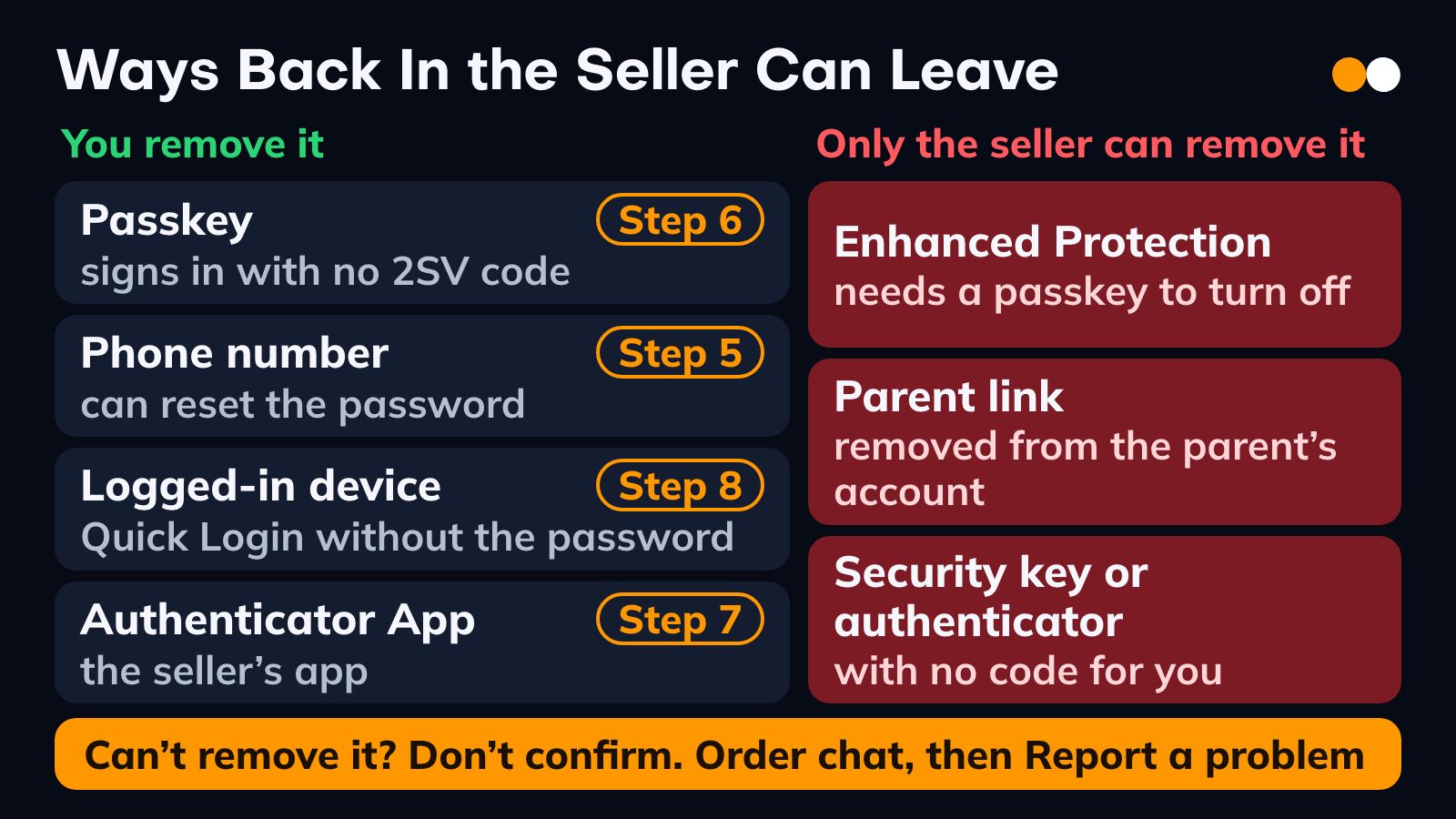
If You Can’t Remove the Seller’s Last Way Back In, Don’t Confirm
This covers three leftovers: the seller’s authenticator or security key when you have no code for it, a parent link, and Enhanced Protection. Enhanced Protection and a parent link can only be removed from the seller’s side, so ask the seller to remove them before Step 3. If a phone number or passkey won’t come off in Step 5 or Step 6, the same rule applies.
Don’t press Confirm delivery.
Tell the seller in the order chat.
If it isn’t resolved, use Report a problem on the order page (how disputes work) before the order closes.
Step 2: Secure the Email Inbox
If the account came with its email login, secure that mailbox now. If it didn’t, go to Step 3.
Roblox sends the email change alert and any Delayed Action notice to the account email, so they should reach you. If it was the first email on the account, Roblox also treats it as proof of ownership after any email change.
Got a public inbox such as yopmail.com? Anyone can read that inbox, so it can’t be secured. Skip the list below and go straight to Steps 3 and 4.
Add your new recovery details before you remove the old ones. Old details can keep working for a while. Google may send codes to previous recovery info for 7 days, and Microsoft keeps a removed sign-in method usable for 30 days.
Sign in to the mailbox and change its password.
Add your own recovery email and phone number, then remove the old ones.
Turn on two-step verification with the email provider.
Review the active sessions and remove any device you don’t recognize.
Also delete any forwarding rule to an address you don’t own.
You might also like
Browse all Ro-verse Accounts


Step 3: Change the Roblox Password
The email and phone changes both need the current password, so this comes first.
Read this before you start:
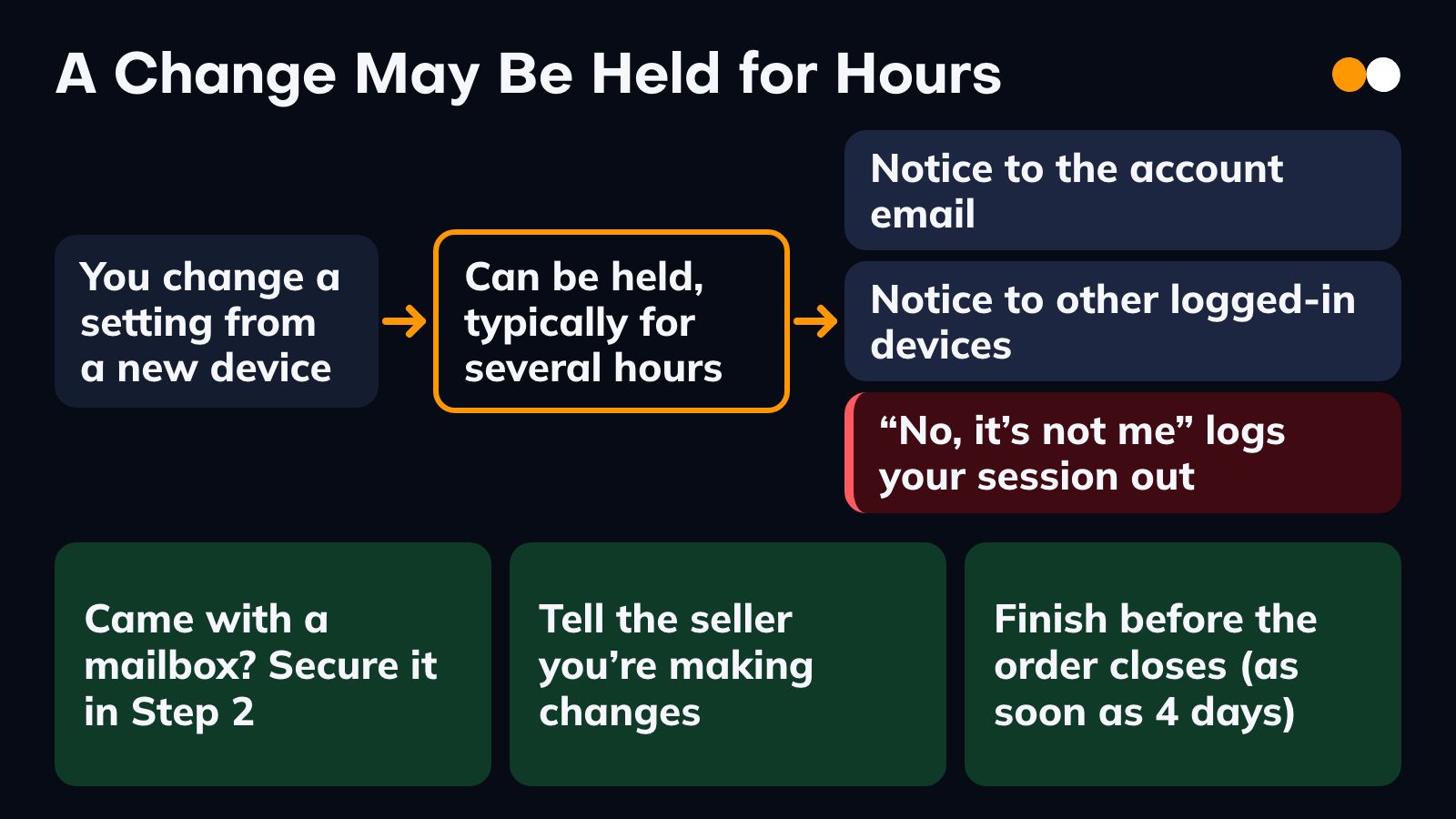
A change may be held for hours. From a new device or location, Roblox can put a sensitive change on hold, typically for several hours, and reject it until the wait ends. When the timer runs out, finish the change and go on. An order can close automatically as soon as 4 days after the seller marks it delivered, so start right away.
Tell the seller you’re making changes. The hold notice also goes to the other logged-in devices, and “No, it’s not me” there logs your session out. If that happens, sign in again and tell the seller in the order chat.
Use Settings only. Never use Forgot Password. Account Recovery resets the password by the email or phone on the account, which may still be the seller’s.
Open Settings and select the Account Info tab.
Select Change Password, enter the current password, then the new one twice. Use one you don’t use anywhere else.
Asked for a 2SV code from an app or email you don’t control? Ask the seller in the order chat, and don’t confirm delivery until it’s resolved.
Step 4: Change the Roblox Email to Your Own
Use your own email here, even if the account came with a mailbox. A previous owner may keep recovery access to that mailbox for a while.
Go to Settings > Account Info and select Update Email.
Enter your new email address and the current Roblox password, then follow the instructions in the email sent to the new address.
Reopen Account Info and check that your new email is shown and verified.
The previous address gets an alert about the change. If Roblox holds the change, finish it after the hold and before the order closes.
No email on the account? Add your own in Account Info and verify it from the message Roblox sends. You need it for 2SV in Step 7.
Can’t find the option, or a code goes to an email or app you can’t reach? Ask the seller in the order chat, and don’t confirm delivery until it’s resolved.
Step 5: Replace the Seller’s Phone Number
A verified phone number can reset the password, and some Roblox apps sign in with the phone number and password.
In Account Info, select Update Phone, enter the phone number and account password, then select Remove Phone Number or Edit Phone.
To add yours, select Add Phone, enter your number and the account password, then the code Roblox sends by SMS or WhatsApp. A number can be on only one Roblox account.
Phone numbers are for users 13 and older in select countries. Elsewhere the Phone Number field doesn’t appear. If you can’t see it, ask the seller in the order chat to confirm no number of theirs is on the account.
Asked for a code sent to the seller’s number, or can’t remove it? Ask the seller in the order chat, and don’t confirm delivery until it’s resolved.
Step 6: Remove Passkeys and Console Links You Didn’t Add
Go to Account Info > Login Methods, select Manage, and press the trashcan icon next to each passkey you didn’t add.
Roblox may ask for the password or an email one-time code. That code now comes to your email, which is why this step follows Step 4.
For Xbox, select Disconnect under Xbox on the Security tab. For PlayStation, open Roblox PlayStation App under Where you’re logged in and select Disconnect PlayStation.
To add your own, use Add Passkey in the same place, and only on a device you personally own.
Can’t remove a passkey? Ask the seller in the order chat, and don’t confirm delivery until it’s resolved.
Step 7: Turn On 2-Step Verification With Your Own App
This needs the verified email from Step 4. If the Authenticator App or Security Keys toggle is already on, it’s the seller’s. Turn it off first, then follow the steps below with your own app.
On the Security tab, turn on the Authenticator App toggle and follow the instructions on screen, using an app on your own phone.
Under the recovery codes section, select Generate and enter your password.
Save the codes right away. Roblox shows them only once, and each works once.
New codes deactivate every earlier set, including any the seller saved. If you lose your authenticator, recovery needs two different verification methods, so keep your email and phone on the account and your recovery codes saved.
Asked for a code from the seller’s app? Ask the seller in the order chat, and don’t confirm delivery until it’s resolved.
Step 8: Log Out of All Other Sessions
Do this after the email and 2SV are yours. This is igitems advice, not a Roblox rule. A session the seller keeps can approve Quick Login for a new device and answer Delayed Action notices.
Go to Settings > Security and scroll to Where you’re logged in, which lists every session with its location, last activity and device.
Select Log Out of All Other Sessions at the bottom of the section.
Reload the page. Only your own device should be listed.
A session you don’t recognize shows up again? Change the password, log out other sessions again and tell the seller in the order chat before the order closes. Don’t confirm delivery until it’s resolved.
Step 9: Save Your Records
Keep these somewhere safe and offline:
Your igitems order details
Your recovery codes
The username, and the email and phone number now on the account
Step 10: Confirm Delivery or Report a Problem
Press Confirm delivery only when all of this is true:
The account matches the listing, with no ban or other problem it didn’t mention.
No seller authenticator, security key, Enhanced Protection or parent link is left.
You secured the email inbox that came with the account, unless it was a public one.
You changed the Roblox password.
The Roblox email is now your own and verified.
The seller’s phone number is gone.
Only your own passkeys and console links remain.
2-Step Verification is on with your own authenticator app, and your new recovery codes are saved.
You logged out every other session, and only your device is listed.
You saved your records.
If any of this isn’t true, don’t confirm. Go to What to Do If Something Looks Wrong.
Don’t wait if you’re stuck. An order can close automatically as soon as 4 days after the seller marks it delivered, so use Report a problem before then.
After You Confirm
Read every security alert. If one shows a sign-in or device that isn’t yours, follow What to Do If Something Looks Wrong right away.
Keep your recovery codes and order record offline. You’ll need them if you ever have to recover the account.
Stick to one device for your first two weeks. This is igitems advice, not a Roblox rule. With one device in use, any Delayed Action notice you didn’t trigger is a real warning.
Notes for Blox Fruits, Adopt Me and Other Experiences
The steps are the same for every experience, from Grow a Garden to Volleyball Legends, Fisch or Steal a Brainrot. Roblox’s own Trade feature for limiteds needs an age check by both players and Roblox Plus.
Scam Checklist
Never give anyone your password, browser cookies, 2SV codes or recovery codes.
Never approve a sign-in you didn’t start.
Ignore anyone claiming to be Roblox staff who contacts you first, on Discord or any other chat. Roblox says its employees will never ask for this information. Official support is only at en.help.roblox.com.
If a seller asks for a code after handover, refuse and tell us through Report a problem or the Help Center.
Avoid websites or apps offering free Robux, fruits or pets. Roblox warns that free Robux offers are a common trick to steal accounts, and it makes no browser extensions.
Only sign in on the official Roblox app or roblox.com, and check the address carefully.
Trade limiteds only through Roblox’s official Trade feature, and in-experience items only through that experience’s own trade system. Never trade for real money, accounts or items outside Roblox. Roblox can’t return items lost in outside deals.
Watch your email. Roblox sends alerts for email changes and Delayed Actions, so read every one.
Good to Know Before You Play
Roblox’s rules don’t allow accounts to be sold, and that includes the account you bought. The Terms of Use say:
“Selling your Account ... selling your access credentials, or contributing to the unauthorized use of your Account ... is strictly prohibited.”
The Community Standards list this as fraud that may result in moderation:
“Engaging in off-platform, secondary market transactions for account access or virtual content from games or Marketplace.”
If a previous owner disputes their own past purchases, Roblox can take back Robux or delete the account.
The previous owner may still be able to recover the account. Roblox Support asks an owner to write from the first email ever added to the account, or the billing email of its very first payment, even after the email has changed. Those usually belong to the seller or an earlier owner. Finishing every step here doesn’t remove that risk, and a buyer usually can’t pass the same check.
No security step can guarantee permanent access. Keep your igitems order record and your recovery codes safe.
What to Do If Something Looks Wrong
If you see activity you don’t recognize, follow Roblox’s security advice:
For a Delayed Action you didn’t start, press “No, it’s not me” in the email or notification, which logs out that session. If the email and 2SV are already yours, also log out every other session. If they aren’t, ask the seller in the order chat first, because the next sign-in code would go to the seller.
Change your password and check that your 2SV settings are still yours.
Also check Account Info and Login Methods for an email, phone number or passkey you didn’t add, and generate new recovery codes to cancel the old set.
Bought on igitems and stuck, locked out or seeing a problem?
Tell the seller in the order chat first. Roblox prohibits selling accounts, and its ownership check relies on the first email and first billing email, which are usually the seller’s, so don’t contact Roblox Support about a purchased account without speaking to the seller.
If it isn’t resolved, don’t confirm delivery. Use Report a problem on the order page (how disputes work) before the order closes automatically, and our team will help.
If the order is already completed and hasn’t had a dispute, you can still use Report a problem on the order page within 14 days.
Our 24/7 Help Center is also there if you need it.
Frequently Asked Questions
Do Blox Fruits, Adopt Me and other experiences have their own login?
No. Their progress and items sit on the Roblox account, so securing it secures all of them.
Can the seller or a previous owner take the account back?
It’s possible. These steps close the normal ways in, but Roblox Support can return the account to someone who writes from its first email or first billing email. Keep your order record.
When should I confirm delivery?
Only after you finish the steps and everything on the Step 10 checklist is true. If something isn’t right, don’t confirm. Use Report a problem on the order page.