On this page
One HoYoverse account holds Genshin Impact, Honkai: Star Rail and Zenless Zone Zero. Its email and phone number receive the codes that change the password and the email, so whoever controls the email and the phone controls the account. When you finish, the email, password, phone number and linked logins on the account should all be yours, and no device you don’t recognize should be trusted.
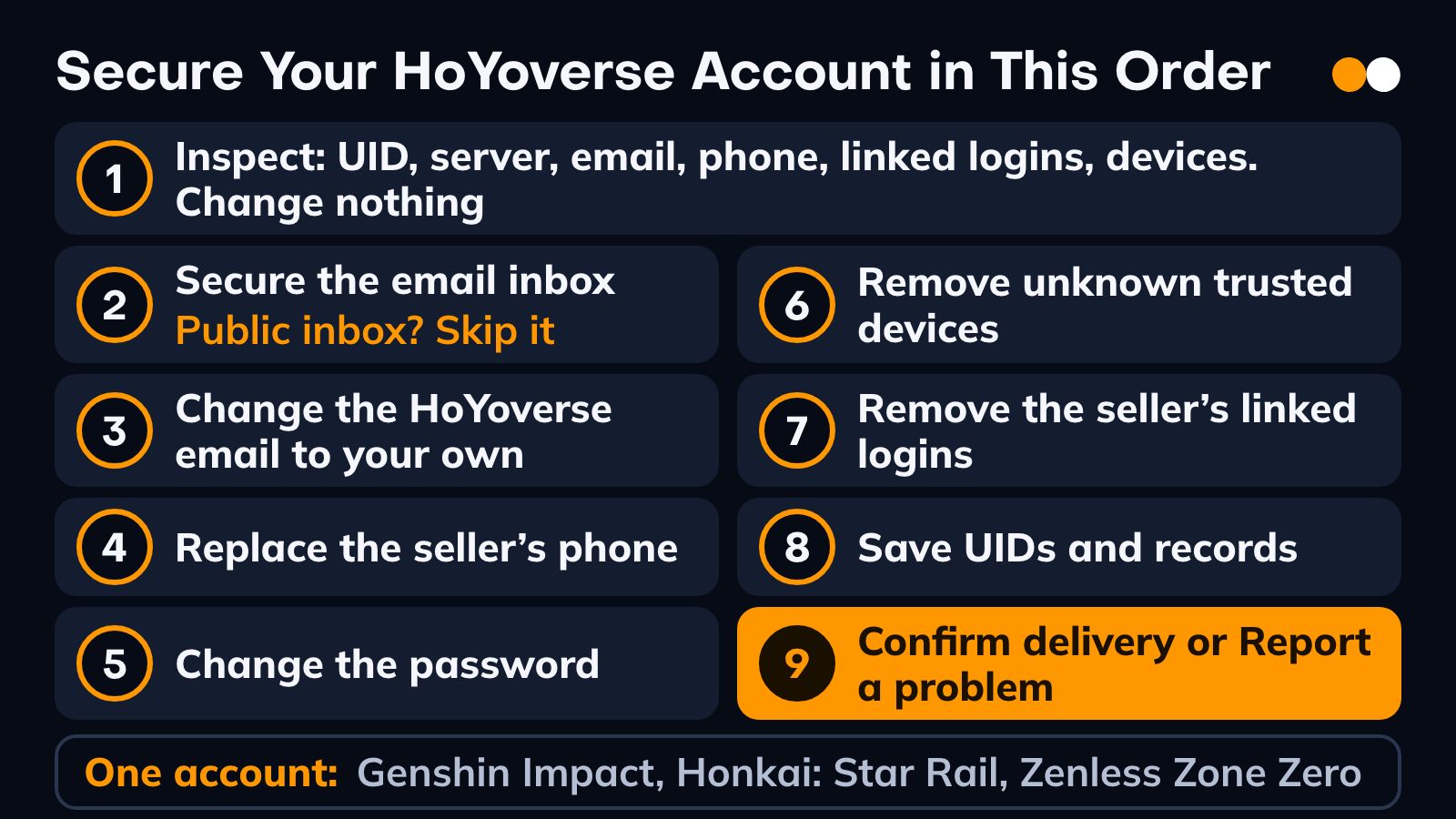
If you bought a Genshin Impact account, Honkai: Star Rail account or Zenless Zone Zero account on igitems, finish all the steps below before you press Confirm delivery. Follow them in order, because each step relies on the one before it. The biggest traps are the seller’s phone number, which can reset the password, and a Google or Apple link, which you can only remove from an Android or iOS device.
How HoYoverse Account Security Works
You manage the account in the HoYoverse Account Center. Three things decide who can get in:
The email. HoYoverse sends a code to it when someone signs in on a new device, changes the password or changes the phone number. The code is for new devices, so a device on the account’s Trusted Devices list may skip it.
The phone number. A linked phone can get an SMS code that resets the password, and it can verify an email change instead of the email.
Linked logins. Facebook, Google, Game Center, Apple, X (Twitter), PlayStation Network and Microsoft (Xbox) accounts can sign in directly, without the email or password.
HoYoverse describes no authenticator app. Its two-factor authentication is a code sent to that email or phone.
Five Mistakes to Avoid
Don’t leave the seller’s phone number on the account. It can reset the password and change the email by SMS, even after you change both.
Don’t keep the email that came with the account. HoYoverse lets you switch the email but never remove it, so switch it to one that was always yours.
Don’t confirm while a seller link you can’t remove is still there. Google comes off only on an Android device, Apple and Game Center only on an iOS device, and PlayStation and Xbox can be unlinked only once.
Don’t leave the account on a public inbox. Until you change the email in Step 3, HoYoverse’s codes go to that inbox, and anyone can open a yopmail.com address.
Don’t confirm delivery just because the game opens. A working login doesn’t mean the seller has lost access.
Step 1: Inspect the Account (Change Nothing Yet)
Don’t change any setting in this step. If something is wrong, you want to know before you touch the email or unlink anything.
Sign in with the details you received. If HoYoverse asks for a code from an email or phone you don’t control, ask the seller for it in the order chat. Don’t use any reset or recovery option. An order can close as soon as 4 days after the seller marks it delivered, so don’t wait on anything for long.
Before delivery, the seller must remove their phone number, their trusted devices and every login they linked, above all Google, Apple, PlayStation and Xbox. Check that they did.
Email and password login. Sign in to the Account Center with an email or username and a password. Step 7 needs this login, because HoYoverse won’t unlink a login that’s your only way in. If the account has no email and password login, ask the seller in the order chat how it signs in, and don’t confirm delivery until you have one.
Listing, UID and server. Open each game the listing names and compare its UID and server with the listing. A server can’t be changed after the account is created. Check the characters, weapons, level and currency it promised too.
Refund notices. Check the in-game mail for a refund notice and the currency balance for a negative number. For Genshin Impact, HoYoverse says a refunded top-up is deducted, even below zero, and the balance must be restored within a set time.
Restrictions. Look for any ban or suspension notice.
Email. In Personal Information, check the address next to Email. Note whether you can open that inbox.
Mobile. In the same section, check whether a number is linked next to Mobile.
Linked logins. Open Linked Accounts and note every login listed.
Trusted devices. Note any device on the Trusted Devices list that isn’t yours.
Found a ban or anything the listing didn’t mention? Stop here. Tell the seller in the order chat and follow What to Do If Something Looks Wrong below.
Step 2: Secure the Email Inbox
If the account came with its email login, secure that mailbox now, because HoYoverse sends codes there. If it didn’t, go to Step 3.
Until Step 3, a code from this inbox can change the account email.
Got a public inbox such as yopmail.com? Anyone who knows the address can read it, and it has no password to change. Skip the list below and go straight to Step 3.
Add your new recovery details before you remove the old ones. Old details can keep working for a while. Google may send codes to previous recovery info for 7 days, and Microsoft keeps a removed sign-in method usable for 30 days.
Sign in to the mailbox and change its password.
Add your own recovery email and phone number, then remove the old ones.
Turn on two-step verification with the email provider.
Review the active sessions and remove any device you don’t recognize.
Also delete any forwarding rule to an address you don’t own.
Step 3: Change the HoYoverse Email to Your Own
Use your own email here, even if the account came with a mailbox. A previous owner may keep recovery access to that mailbox for a while.
Your new address can’t already be on another HoYoverse account. Each email can be linked to only one.
In the Account Center, open Account Security or Personal Information and select Change Email. Some pages show it as Link next to Email.
Enter the code sent to the current email. If you can’t reach that inbox, Use another verification method sends an SMS to the linked phone instead.
Enter your new email address and confirm it with the activation code sent to it.
Reopen Personal Information and check that your new email is shown.
Can’t find the option, or a code goes to an email or phone you can’t reach? Ask the seller in the order chat, and don’t confirm delivery until it’s resolved.
Seeing “Too many requests” or a security-risk message? HoYoverse says to wait a while and try again, or to adjust your network if it says the network environment is at risk. If it still fails, tell the seller in the order chat before the order closes.
You might also like
Browse all Genshin Impact Accounts








Step 4: Replace the Seller’s Phone Number
Do this after Step 3. On a new device, a phone change sends a code to the linked email, and that email is now yours.
A seller’s phone left on the account can reset the password and verify an email change by SMS, undoing Steps 3 and 5.
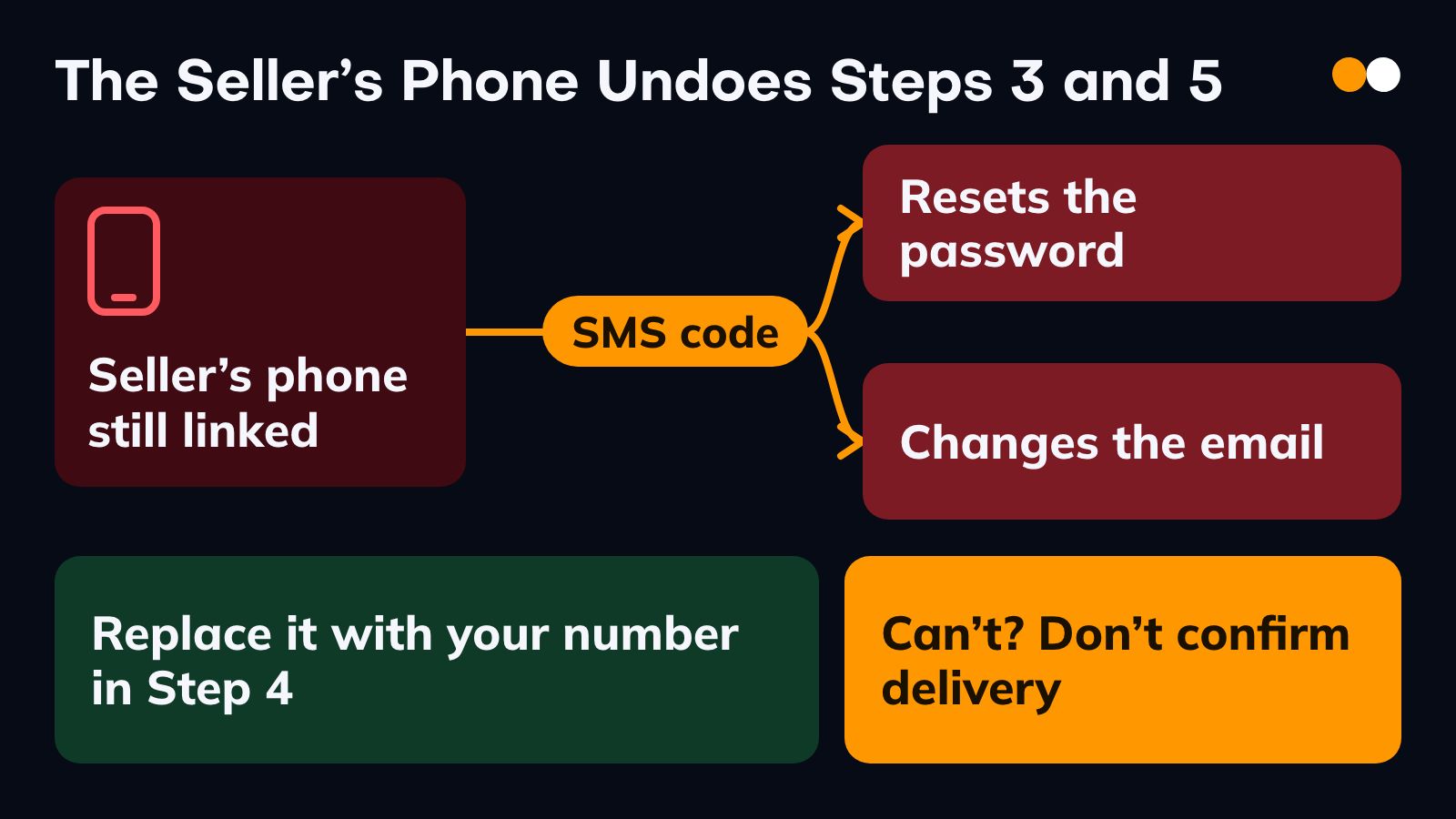
In the Account Center, go to Personal Information and select Link next to Mobile, or change the number already there.
Enter your own number and the codes asked for, then check it’s shown next to Mobile.
Asked for a code sent to the seller’s phone? Ask the seller in the order chat, and don’t confirm delivery until it’s resolved.
If You Can’t Remove the Seller’s Phone, Don’t Confirm
While their number is linked, the seller can reset the password and change the email by SMS.
Don’t press Confirm delivery.
Tell the seller in the order chat.
If it isn’t resolved, use Report a problem on the order page (how disputes work) before the order closes.
Step 5: Change the Password
Do this after Steps 3 and 4. On a new device, the password change sends a code to the linked email. A seller’s phone could reset any password you set before it was gone.
In the Account Center, open the password settings and choose to change the password.
Enter the code sent to your email.
Set a strong password you don’t use anywhere else.
If the seller set a username, it stays, because HoYoverse doesn’t let anyone change or remove one. Once the password, email and phone are yours, it gets no one in.
Step 6: Remove Unknown Trusted Devices
HoYoverse keeps a Trusted Devices list and tells users to remove devices they don’t recognize. A seller’s device on that list may skip the email code, and HoYoverse doesn’t say whether changing the password signs it out.
In the Account Center’s security settings, find the Trusted Devices list.
Remove every device that isn’t yours. Keep the one you’re using.
Can’t find the list, or a device won’t go away? Ask the seller in the order chat, and don’t confirm delivery until it’s resolved.
Step 7: Remove the Seller’s Linked Logins
Read this before you unlink anything:
Keep your email and password login working. HoYoverse needs at least one other active login method before it lets you unlink one.
Google and Apple can’t be removed on the web. A Google link can only be unlinked in a game on an Android device, and an Apple or Game Center link only in a game on an iOS device. Both links still sign in on the web Account Center.
A Google link isn’t a seller link if Linked Accounts shows the Gmail that came with the account and you took that Gmail over in Step 2. If you can’t see which Gmail it is, treat it as the seller’s.
PlayStation and Xbox can be unlinked only once. If the seller already used that one unlink, you can’t remove the link yourself.
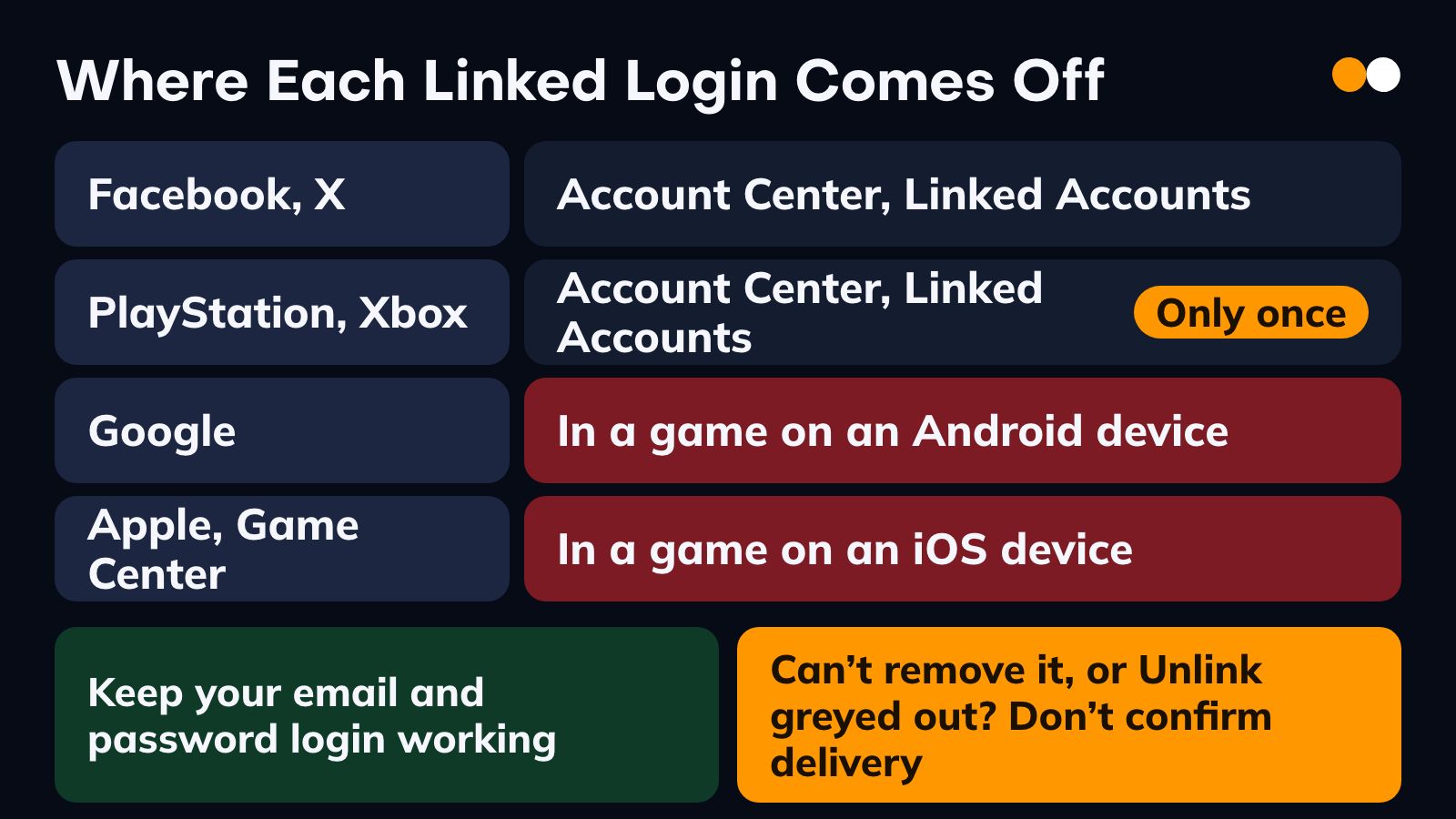
In the Account Center, open Linked Accounts and unlink any Facebook, X, PlayStation Network or Microsoft (Xbox) account that isn’t yours.
For a Google link, open a HoYoverse game on an Android device, go to Settings > Account > User Center and unlink it. For Apple or Game Center, do the same on an iOS device.
Check Linked Accounts again. Only your own logins should be left.
Link your own PlayStation or Xbox account only if you’ll keep it, since the one self-unlink may be used up.
No Unlink option on a login, or no Android or iOS device for it? Ask the seller in the order chat to remove it, and don’t confirm delivery until it’s resolved.
Unlink greyed out? HoYoverse says to check for pending email verifications or recent security changes, and you just made some. Don’t confirm delivery. Ask the seller in the order chat to remove the link. If it isn’t gone by the next day, use Report a problem before the order closes.
If You Can’t Remove the Seller’s Link, Don’t Confirm
A linked login signs straight in, past the email, password and phone you just changed.
Don’t press Confirm delivery.
Tell the seller in the order chat.
If it isn’t resolved, use Report a problem on the order page (how disputes work) before the order closes.
Step 8: Save Your Records
Keep these somewhere safe and offline:
Your igitems order details
The UID and server of each game
The email and phone number now on the account
Receipts for in-game purchases you make yourself, since HoYoverse’s ownership checks ask about previous purchases
Step 9: Confirm Delivery or Report a Problem
Press Confirm delivery only when all of this is true:
The account matches the listing, with the right UID and server and no ban, refund notice or other problem it didn’t mention.
You secured the email inbox that came with the account, or it was a public inbox you moved off in Step 3.
The HoYoverse email is now your own.
The seller’s phone number is gone and your own is linked.
You changed the HoYoverse password.
Only your own devices are on the Trusted Devices list.
Only your own linked logins remain.
You saved your records.
If any of this isn’t true, don’t confirm. Go to What to Do If Something Looks Wrong.
Don’t wait if you’re stuck. An order can close automatically as soon as 4 days after the seller marks it delivered, so use Report a problem before then.
After You Confirm
Read every security email. If one shows a sign-in or change that isn’t yours, follow What to Do If Something Looks Wrong right away.
Keep your UIDs and order record offline. HoYoverse may ask for account and purchase details if you ever need to prove the account is yours.
Sign in at least once a week. This is igitems advice, not a HoYoverse rule. Anyone who signs in and passes the identity check can request deletion, which wipes every game, but signing in within the next 30 days cancels it.
Scam Checklist
Never give anyone your password, verification codes or account details.
Never enter a code for a sign-in or change you didn’t start.
Ignore anyone on Discord or any other chat who claims to be HoYoverse Support. Use only the official HoYoverse Help Center.
If a seller asks for a code after handover, refuse and tell us through Report a problem or the Help Center.
Avoid websites or apps offering free Primogems, Stellar Jade or Polychromes. They’re a common way accounts get stolen.
Only sign in through official HoYoverse websites and games, check the address carefully, and top up only through official channels.
Good to Know Before You Play
HoYoverse’s rules don’t allow accounts to be bought, sold or shared, and that includes the account you bought. The Terms of Service for Genshin Impact, Honkai: Star Rail and Zenless Zone Zero say:
“If you sell or otherwise transfer control over your Account or other related information, COGNOSPHERE reserves the right to take action, including but not limited to the right to terminate your Account immediately without any refund.”
The Help Center adds: “Please do not buy, sell, or share accounts.” If HoYoverse terminates the account for this, you lose every game on it, with no refund from HoYoverse.
The previous owner may still be able to recover the account. HoYoverse’s Account Issues Application Form asks for the account email, username, character details and previous purchases, and HoYoverse helps with recovery when it verifies ownership. Finishing every step here doesn’t remove that risk, and a buyer usually can’t pass the same check.
A refund of the seller’s earlier top-ups can land on you after you confirm, and a chargeback can lead to suspension. If that happens, tell the seller in the order chat and use Report a problem on the order page within 14 days after the order completes, if the order hasn’t had a dispute.
No security step can guarantee permanent access. Keep your igitems order record and your UIDs safe.
What to Do If Something Looks Wrong
If you see activity you don’t recognize, follow HoYoverse’s security advice:
Remove unfamiliar devices from the Trusted Devices list. If the email and phone are already yours, remove every device but your own. If they aren’t, ask the seller in the order chat first, because the next sign-in code would go to the seller.
Change the password in the Account Center.
Check that the email, phone number and linked logins are still yours.
Bought on igitems and stuck, locked out or seeing a problem?
Tell the seller in the order chat first. HoYoverse’s Terms let it act against an account that was sold, and it helps with recovery when it verifies ownership, so don’t contact HoYoverse Support about a purchased account without speaking to the seller.
If it isn’t resolved, don’t confirm delivery. Use Report a problem on the order page (how disputes work) before the order closes automatically, and our team will help.
If the order is already completed and hasn’t had a dispute, you can still use Report a problem on the order page within 14 days.
Our 24/7 Help Center is also there if you need it.
Frequently Asked Questions
Does one HoYoverse account cover all three games?
Yes. One account holds all three, each with its own UID and server. Securing it protects all three, and losing it loses all three. Check each game’s UID in Step 1.
Can the seller or a previous owner take the account back?
It’s possible. These steps close the normal ways in, but HoYoverse can return the account to someone who proves ownership with its details and purchase history. Keep your order record.
When should I confirm delivery?
Only after you finish the steps and everything on the Step 9 checklist is true. If something isn’t right, don’t confirm. Use Report a problem on the order page.